When Something Goes Wrong
Every tutorial so far has worked. This one does not, on purpose.
This tutorial causes six failures deliberately, one at a time, and names what each one looks like on screen. The failure appearing is the correct outcome. If a step produces the message it says it will, that step passed.
It leaves your rig in a state you have to put back. Read Restoring your rig before you start, and work through this when you have time to tidy up afterwards.
The fixes are in Troubleshooting and the codes in Status Messages.
Before you start
- Every Player Tutorial up to and including Vocal Sustain. Every step on this page runs in Auto Run Mode.
- Nothing you care about running. You are going to end your DJ application's process mid-session and remove a MIDI port.
- Know how to recreate your MIDI bus. With loopMIDI that is one button; with Windows MIDI Services it is the MIDI Settings app. If you are not sure, check Setup first. On the Mac there is no bus to recreate: the connection is Fusor Studio's own.
Put your crossfader into bypass by hand before you go any further. Bypass takes the crossfader out of the signal path, so deck level comes from the channel faders alone. If you have not done this before, check your DJ application's own documentation; it may be called thru or pass-through.
Bypass is a state of your mixer. It stays where you put it until you put it back.
The three deck-level setups in full are in Crossfader Setup and Deck-Level Modulation.
Prepare your decks
the track material named below. It is drafted from the fusors this page loads, not from a walked run. Filed as DE-2.
Every step on this page uses the same rig:
- Two tracks you know how to mix, the outgoing one on the deck you are mixing out of. Nothing here is about the material, so use whatever you know well.
- Outgoing channel fader at full, incoming channel fader at zero.
- Crossfader in bypass and hard over to the outgoing side. It is still the progress actuator and it still travels.
- Start the outgoing deck playing. A transition mixes out of that deck, so the Play button
stays gray until it is running. Once it is, the button turns yellow and the status line reads
Armed: Press Play to start. Pressing PLAY starts the transition. - Cue the incoming deck and start it when a step tells you to.
1. End the DJ application's process mid-transition
Load EQ Swap, prepare the decks, and press PLAY.
Four or five bars in, end your DJ application's process: select it in Task Manager and click
End task. On the Mac, choose Force Quit from the Apple menu. A normal quit stops both
decks first, so the run pauses with RUN3-Both decks stopped: paused and the light stays green.
What to watch:
- The progress meter keeps advancing. The Fusor player does not stop.
- The telemetry light at the far right of the status line turns amber.
Amber means the Fusor player was sending MIDI and received none back. During a run the player sends MIDI continuously and the DJ application echoes it, so no MIDI at all during a run usually means the connection is lost.
The three colors it can show:
| Color | What it claims |
|---|---|
| Green | Fusor Studio has received MIDI from the DJ application |
| Amber | A transition was running and nothing came back from the DJ application |
| Gray | Blind Mode |
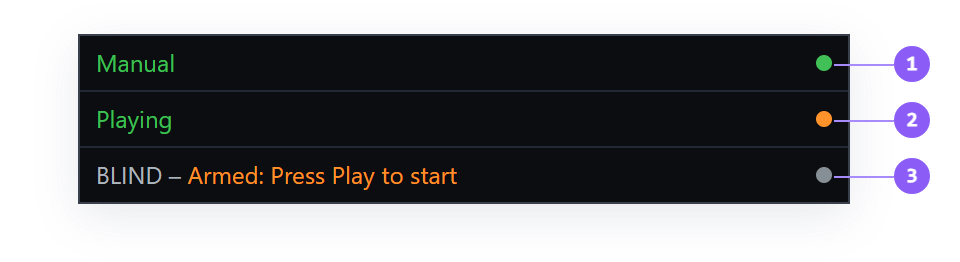
- Green, beside
Manualduring a Manual run. - Amber, beside
Playingafter the DJ application's process was ended. The run continues. - Gray, beside
BLIND – Armed: Press Play to start, in Blind Mode.
The Fusor player will not stop the transition for you. There is no reliable way to tell a disconnected DJ application from a quiet one, so the player shows the amber light and keeps running until you abort. Here, press Abort and hold.
Now start your DJ application again. The light stays amber until the application sends something. Touch any control over there and it goes green immediately.
Routed to: Troubleshooting → The DJ app stopped responding during a transition, and The Player Window → The status line for the colors.
2. Take the MIDI bus away
With Fusor Studio running, delete or stop your Fusor MIDI bus port in loopMIDI or the Windows MIDI Services settings app.
On the Mac, skip to step 3. The Fusor Studio connection exists for as long as Fusor Studio runs,
so there is no port to remove.
Open Settings → Connection and press Connect and sync (Resync when the light is green).
The capture fails, and the Fusor player switches to Blind Mode automatically:
- The status line reports the failure. Which code depends on what comes back: a capture that receives
no MIDI at all reports
BLIND – Blind Mode: no MIDI from Traktor(CAP6); one that receives some MIDI but no deck state reportsBLIND – Capture failed: no deck state(CAP7). - The DJ app card on Settings → Connection turns red, with that same sentence underneath and Connect and sync still shown.
- PLAY still starts a transition. The player runs on a default baseline instead of one read from your DJ app.
at the rig which CAP code a vanished bus produces, and whether the port disappearing while the app is running produces any additional message of its own. NARROWED 2026-10-05 from source (a prediction, not an observation): Traktor captures in observe mode (config/tag_registry.json, Traktor's cscMode), so CAP3 (cap.failed) is unreachable for it; that code is raised only by the force path's throw (control_state_capture.js:409). The observe path's 2 s timeout raises CAP6 when nothing at all arrived and CAP7 when something arrived but not both decks' play state (control_state_capture.js:593-596). Still owed at the rig: which of CAP6/CAP7 a deleted loopMIDI port actually yields, and any extra message. There is no dedicated bus-loss code in config/messages/en.json.
main.log holds the detail the forty-character status line cannot. Its location and how to raise
the verbosity are in Logging.
Recreate the port before the next step, and press Connect and sync on Settings → Connection once
more. The BLIND prefix clears.
3. Restart with your DJ app closed
Restart Fusor Studio with your DJ application closed.
Press Capture State on the Fusor player. The capture reaches nothing, and the player switches to Blind Mode automatically, as in step 2.
The state text gains a BLIND – prefix in gray, and the telemetry light goes gray. Both look
exactly as they do in a Blind Mode you turn on yourself.
Look at what went with it:
- The Run Mode switch is locked at Auto. Manual and Mixed Run Mode follow the crossfader, and
Blind Mode ignores crossfader telemetry. A press on Mixed or Manual shows
Blind Mode: Auto Run Mode only. - Start-with-Incoming is disabled. It starts on telemetry from the incoming deck, and Blind Mode ignores telemetry.
- The Tempo Ramp toggle is disabled.
- Snapshot restore does nothing, because there were no pre-transition values to capture. A domain set to Home still sends its outgoing controls home, which needs no baseline, so by default an outgoing FX unit's controls are still sent home. See Domains → End of run.
- Per-control takeover stops working. The gesture from EQ Swap depends on the player receiving the channel fader's MIDI.
Blind Mode ignores all telemetry.
Stay in Blind Mode for now; step 4 needs it. You could also leave it by starting your DJ
application and touching a control instead of using the Blind Mode switch: the first MIDI message the Fusor player
receives reports MIDI from Traktor: Blind Mode off (CAP9) and a fresh capture runs on its own.
Routed to: Blind Mode.
4. Arm the tempo ramp in Blind Mode
Still in Blind Mode, load EQ Swap and look at the Tempo Ramp toggle.
It is grayed out. Hover it and the tooltip says why:
The tempo ramp needs telemetry to confirm the deck reached its target tempo, and Blind Mode ignores telemetry.
If you arm the ramp from a hardware controller, which bypasses the grayed-out button, the status line shows the same reason as TR2.
A refusal is the correct outcome here. A ramp that fired without telemetry would change the incoming deck's tempo with no confirmation that it reached the target.
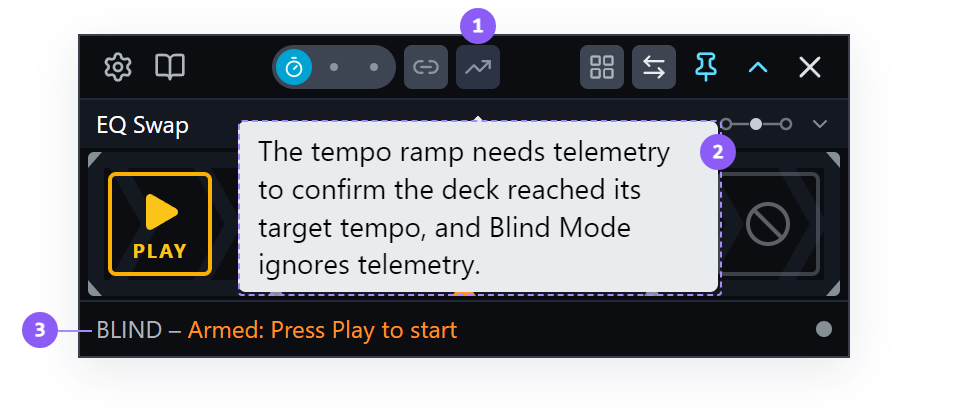
- Tempo Ramp toggle: dimmed while Blind Mode is on.
- Tooltip: why the toggle is unavailable.
- BLIND prefix: leads the status line while Blind Mode is on.
Turn Blind Mode off with the Blind Mode switch in Settings → Connection, in the DJ app card. A fresh capture runs automatically, because the baseline you were using while blind was a stand-in. Start your DJ application first so that capture has something to reach.
5. Restart the outgoing deck on a ramped run
Turn the Tempo Ramp toggle on. Armed: Press Play to start becomes
Armed with Tempo Ramp: Press Play to start. With the outgoing deck playing, the ramp sets up as
soon as the toggle is on, and the toggle turns blue: setup has finished before the run starts. Press
PLAY.
Partway through the run, stop the outgoing deck and start it again. Stop only that deck: with
both decks stopped, the run pauses. The stop releases the ramp's setup, and the status line reads
Outgoing stopped: tempo ramp waiting. The restart runs setup again, partway through the run.
The ramp still runs, and it runs late, and the status line says so:
TR5-Tempo ramp late: may be audible
That is a warning rather than an error. The transition is unaffected and the ramp's own timing is unchanged. What has changed is that the tempo move is now happening while the incoming deck is audible.
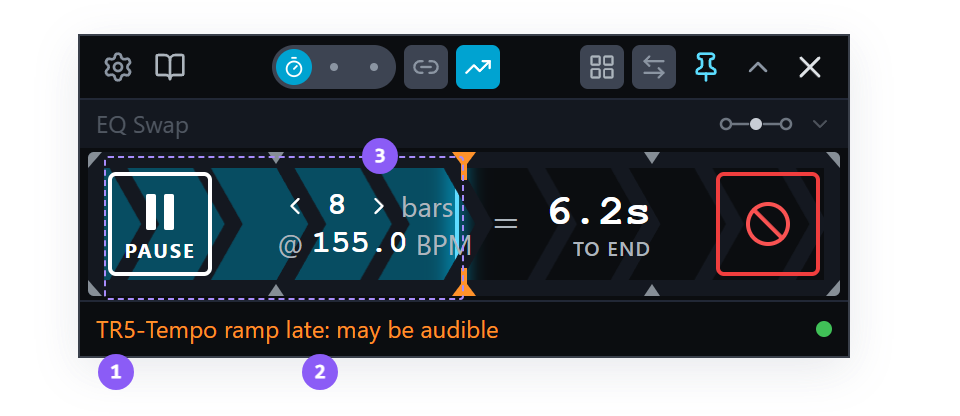
- TR5: the code to look up in Status Messages.
- Orange: the color of a warning.
- Progress meter: the run is about halfway through and still advancing.
To avoid it: keep the outgoing deck playing until the run reaches 100%.
Routed to: Status Messages → TR5.
6. Abort mid-transition
Load EQ Swap, prepare the decks, and press PLAY. Let it get about halfway.
Press and hold Abort. The button requires a 0.4-second hold before it fires, so a reflex press cannot end a transition.
The transition terminates. Look at what it left behind:
- Every control stays where the run had got to. EQ bands part-swept, both channel faders mid-travel. An abort does not tidy up.
- The post-run queue does not run. On a fusor that has a post-run action, that is the case that matters: abort Wash Out partway and your Mixer FX selector stays on Reverb, because Mixer FX Put Back never runs.
- A second button appears. One second after the abort, the Abort button becomes RESTORE: white frame, counter-clockwise arrow. Press it and every control goes back to where it was before the run started.
The Fusor player applies the one-second delay itself, so it covers a hardware controller press too. For that first second the button is still Abort.
Abort ends the transition. Pause is resumable and leaves the transition alive; after an abort the only way to try again is to reload the fusor. The comparison table is in Transport Controls → Pause vs Abort.
Press RESTORE now. The controls return to their pre-run values, and the transition stays aborted.
Restoring your rig
This tutorial deliberately left things broken. Work back through:
- Recreate the MIDI bus if you removed it, and confirm it is selected in Settings → Connection under Fusor MIDI Bus.
- Restart your DJ application and confirm its MIDI in-port and out-port are bound to that bus, not to "All Ports".
- Turn Blind Mode off. It does not persist across a launch, and confirm the status line shows
no
BLINDprefix. - Press Connect and sync (Resync when the light is green) on Settings → Connection. The DJ app light should turn green, with no failure sentence beneath it.
- Leave your crossfader in bypass if you are continuing with the tutorials, or put your crossfader assignments back if you are done.
- Check the controls the aborted run left behind: the EQ knobs and channel faders on both decks.
- Turn the Tempo Ramp toggle off if you left it armed.
Then run one transition end to end and confirm it completes normally. That is what proves the rig is back.
What you learned
- That amber on the telemetry light means the Fusor player was sending MIDI and received none back, and that only traffic from the DJ application clears it.
- That the player does not stop a transition when its MIDI goes silent, and why.
- That a failed capture switches the player to Blind Mode automatically, and that PLAY still starts a transition from there.
- What Blind Mode disables, and that Blind Mode ignores all telemetry.
- That a refusal with a code is a working feature.
- That an abort leaves the rig where it stopped, skips post-run actions, and offers RESTORE a second later.
Where to next
- Drive Fusor From a Controller: optional, and the one tutorial that needs hardware you may not have.
- Author Your First Action: the start of the Authoring Tutorials.
- Troubleshooting: the fix tables, now that you have seen what each symptom looks like.
- Status Messages: every code, what it means, and what to do about it.