Wash Out
The fusor is Wash Out. It modulates Traktor's Mixer FX on the outgoing channel alongside both channel faders: the reverb's effect amount rises on the outgoing track, the outgoing fader cuts at End, and the reverb rings out and fades under the incoming track, which has no effect on it.
Wash Out also runs two actions of its own, the two you fired from the pads in Actions and Pad Mode. Before the transition starts it selects the reverb on your outgoing channel, and after the transition ends it puts your Mixer FX selector back.
Two runs. The first runs in Mixed Run Mode, on the clock up to End and then by hand, and shows the actions and the Effect tail. The second runs in full Auto and shows the tail on the clock.
Before you start
- Actions and Pad Mode done.
- Your crossfader still in bypass.
- Tutorials still the active collection.
- Traktor, with the Fusor Studio mapping loaded, and Reverb still assigned to the first of the four Mixer FX slots in Traktor's settings, as in Actions and Pad Mode. The fusor's pre-run action selects it on the channel.
Run one: The actions, and the Effect tail in Mixed
1. Load Wash Out and read the stack
Click the fusor picker and click the Wash Out row. Open Session View with the expand arrow.
Above the stack sits the author's intent line: "Wash the outgoing track into a reverb and cut it at the mix point, so everything after the cut is the reverb's tail over the incoming."
Session View reads top to bottom in the order things happen during the run, so this stack has four cards:
| Card | What it does |
|---|---|
| Mixer FX to Reverb | A pre-run action. It runs before the transition starts. |
| Mixer FX | Enable and Amount on the outgoing channel. The incoming column is empty: the fusor puts no effect on the incoming track. |
| Channel Fader | volume on each deck, both sides authored. With the crossfader out of the signal path, those two curves are the blend. |
| Mixer FX Put Back | A post-run action. It runs when the transition completes. |
Action cards have a colored left border, so you can tell at a glance which cards run an action and which modulate a domain's parameters.
Mixer FX sits on the channel strip and needs no assignment to a deck. The effect is wherever that channel's audio is.
2. Why the fusor runs its own actions
Wash Out's two Mixer FX lanes modulate Mixer FX On and Mixer FX Amount on the outgoing channel. Which effect those two controls belong to is a separate selection in Traktor, and no parameter lane can set it. Left on whatever the channel had, the run would still happen, the curves would modulate that effect instead, and there would be no reverb to ring out.
An action can set the selector, so the author attached one. Click the Mixer FX to Reverb card. It shows a line Fusor Studio computes from the action's own steps:
Mixer FX Selector: position 2 (Reverb)
at the Wash Out walk that the pre-run card renders exactly this line (derivedPreflight.ts:600; the SET REVERB step resolves to ladder index 1 of traktor.mixerfx_5, shown 1-based). Drafted from mixer-fx-to-reverb.faction, not read off the screen.
The number comes first because which effect sits in which Mixer FX position is your own Traktor setup. The name in brackets is what the fusor's author assumed about theirs. If the two disagree, trust the number and go and look. The author's note under it says the same thing in words: Assumes Reverb is in Mixer FX slot 2.
Each action card has an orange enable switch. Leave both on. Switching an action off is a session
edit like the domain switch on EQ Swap, and it is written to the .fusor on disk.
3. An End mix point with an Effect tail
Wash Out is filed as an End mix, and its Mixer FX card has the Effect tail switch on. That leaves room after End for the effect to taper off. The fusor's curves finish at End, which is the mix, and the stretch after it is the tail. The progress meter draws the orange mix mark at End, 80% of the way along the strip, with small gray quarter marks at 0, 20, 40 and 60%.
During the tail the reverb rings out and its Amount fades back to its center, where the effect is off. The author draws none of that: the fade is generated from where the Amount lane stands at End. The mix is complete at the orange mark.
The bars you set are the length of the run to End, so line the decks up as for any End fusor. In Auto, the clock plays the tail out over a further 25% of the transition's length. If you run an End fusor with a tail in Auto, consider switching to Mixed Run Mode to control when the tail tapers off, to suit the track. This run does that. Run two shows the Auto tail.
Every value is described in Mix Points.
4. Prepare your decks
the track material named below. It is drafted from Wash Out's curves and its end mix point, not from a walked run. Filed as DE-2.
In your DJ application, on the deck pair you chose during setup:
- Load two tracks that hand over on a reverb. The outgoing track wants a transition's length it can afford to lose, and the incoming track wants to be usable from its first beat, because the fader brings it most of the way up by the halfway mark.
- Set your channel faders. The outgoing deck's at full and the incoming deck's at zero, which is where the two curves begin.
- Leave the crossfader hard over to the outgoing side. It is in bypass, so it modulates nothing.
- Set the outgoing channel's Mixer FX to anything except Reverb, Filter for instance, and remember which. That is the state the pre-run action exists to fix, and where the post-run action should return it.
- Start the outgoing deck playing.
5. Switch to Mixed
Mixed Run Mode gives the clock the first part of the run and you the rest. The run is on the clock up to the fusor's mix point, then stops. Every parameter holds and the decks play on, and when you bring the crossfader to the stop position the run follows your crossfader to the end. On Wash Out the stop is at End, so the clock runs every curve and you set the tail's length with the crossfader.
Click Mixed, the middle position on the Run Mode switch. Once lit it shows two overlapping circles.
Mixed needs a point to stop at, so it is available when the mix point is Middle, or
End on a fusor with an effect tail, as Wash Out is. On a fusor whose mix point is Start, End
without a tail, or none, the position is dimmed, and pressing it shows
Mixed: no mix point to stop at.
The bars, BPM and duration readout stays in the middle of the progress strip, because the first part of the run is on the clock. Set the length to a duration that matches how you want to mix the two tracks, and the tempo to the tempo you are mixing at. The countdown counts down to End.
6. Run it
Start the incoming deck so its mix-in point meets the outgoing track's mix-out point on the transition's End mix point, where the outgoing fader cuts and the incoming track takes over, and press PLAY as it starts. Leave your controller's crossfader where it is until the run stops: picking it up before then takes the run over, as in Auto Run Mode.
If you are unsure what we mean by starting the incoming deck so the mix-in and mix-out points meet on the mix point, see Starting a Transition for examples.
The curves start once setup is complete. Modulated controls do not move until the pre-run action
and the other setup steps have finished, which typically takes a few milliseconds. The status line
names the action while it runs: Running MixFXReverb…. Watch Traktor's Mixer FX selector: it moves
to Reverb on its own, and then progress starts.
at the Wash Out walk — the status line text while the pre-run action runs (Running MixFXReverb…, by analogy with the observed Running MixFXFilter… on Evaporate, bench S46).
The Mixer FX switch goes on, and the Amount knob starts at its center, where the effect is off. The effect amount rises smoothly from there and reaches full at about 67% of the mix. The outgoing fader stays high and eases down a little, and it drops to zero on the last tick of the mix.
- At End the run stops. Every parameter holds and the decks play on. The outgoing channel fader
has just reached zero, so what is left of the outgoing track is the reverb, held at full effect
amount. The bars, BPM and timer readout disappears, the arm control shows the yellow dot, and the
status line reads
At mix point: crossfader to the line. The Run Mode switch still reads Mixed. - Bring the crossfader to the line. Your DJ app's soft takeover holds the crossfader until your hand reaches the position the Fusor player left it at. Progress then follows the crossfader.
- Take the crossfader to the end at your own pace. The Effect tail fades the Mixer FX effect amount from full back to the knob's center, where the effect is off, so the crossfader's position sets how far the fade has gone. Move slowly and the reverb rings longer; move quickly and it closes sooner. The incoming track is alone when the meter reaches 100%.
- Press END at 100%, and look at the Mixer FX selector. It is back on the effect you left it on. The post-run action restored what the pre-run action remembered.
The stop is not a takeover. The outgoing deck's end-of-run settings still apply. Taking a Mixed run over before the stop works as in Auto Run Mode.
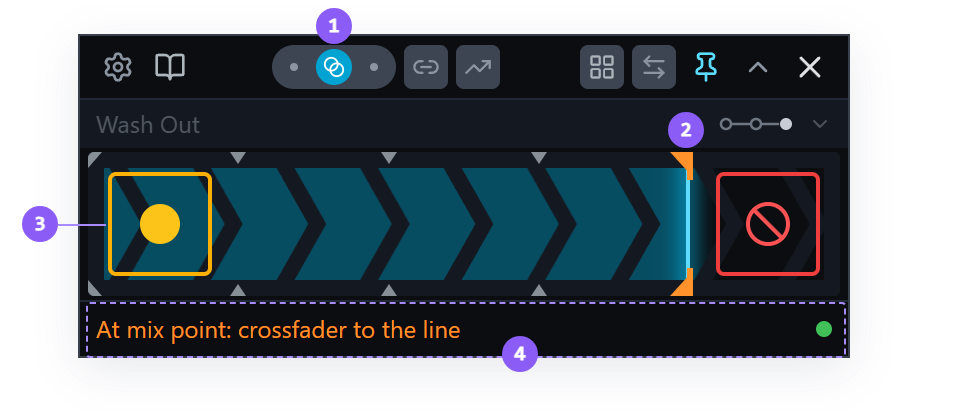
- Run Mode switch: Mixed, the two circles, is lit blue.
- End mark: the orange mark where Wash Out's mix point falls. The progress meter has stopped on it.
- Arm control: the yellow dot.
- Status line:
At mix point: crossfader to the line.
7. What the reverb did, and what the fader did
Expand the cards and hover each parameter. Four lanes modulated that run.
| Lane | Across the mix |
|---|---|
| Enable, Mixer FX | Holds On from the first tick to the last. It is a stepped lane with two positions, Off and On, and this fusor uses only On. The effect is switched on before anything else happens, so it is already on when Amount starts to rise. |
| Amount, Mixer FX | The effect amount. Starts at its center, where the effect is off, rises smoothly to full by about 67% of the mix, and holds there to End. The authored curve stops at End. During the tail, Fusor Studio fades the amount back to the center, and that fade is not drawn on the curve. |
| Channel Fader, outgoing | Full at the start, easing down to about 0.7 by the last moment of the mix, then zero at End, and zero through the tail. |
| Channel Fader, incoming | Rises out of zero, eases up to full, and is full at End. |
What you heard after End is the effect tail, and the curves do not show it. Traktor's Mixer FX sits after the channel fader in the signal path, so the reverb keeps ringing out after the outgoing fader reaches zero. From End until the tail has faded the Amount, you hear only the outgoing track's reverb, under the incoming track at full.
The fader cut is part of the effect. An outgoing fader that came down on the constant-power curve you ran on EQ Swap would have faded the track away gradually and left nothing to hear ring out. This one holds the track near full and cuts it at End, so the reverb is left exposed.
Pressing END also put the Mixer FX switch back. The End of run dropdown on the Mixer FX card reads Restore, so the outgoing channel's Mixer FX switch returns to where you had it before the run. The Channel Fader card reads Leave, because putting the faders back would undo the level change the transition just made. The three dispositions are set out in Domains → End of run.
8. The Effect tail
The tail belongs to the Mixer FX card, not to the fusor as a whole. In the library, open Wash Out for editing and look at the Mixer FX card on the Domains tab: it has an Effect tail switch, and it is on. The switch appears on the outgoing side of the FX Unit, FX Banks and Mixer FX cards, and only when the fusor's mix point is End. FX Routing → the effect tail lists what else it needs.
To get a tail, leave the effect enabled at End and turn on Effect tail. The tail fades the effect out, and the end-of-run setting then switches it off. Wash Out's Enable lane holds On through End, and the card's Restore setting puts the channel's Mixer FX back where you had it once the tail has run.
When you don't want a tail, author the effect off at End. Switch its enable off, and bring its Dry/Wet to zero or, on a Mixer FX, its effect amount to center. That is a deliberate cut, and a card that cuts its effect at End shows no effect-tail message.
In Auto the tail always takes a further 25% of the transition's length after End. In Mixed, you decide how long the tail lasts with the crossfader.
Run two: Full Auto, and the tail on the clock
If you stay in full Auto on an End fusor with a tail, the clock plays out the tail. The run reaches End after the bars you set, and the effect tapers off over a further 25% of the transition's length.
9. Run it in Auto
- Set the decks up as in step 4, with the Mixer FX selector on something other than Reverb again.
- Click Auto on the Run Mode switch. Set the length and tempo as in step 5.
- Start the incoming deck so its mix-in point meets the outgoing track's mix-out point on the transition's End mix point, and press PLAY as it starts. The pre-run action selects the reverb, as in run one.
- At End the run continues. The outgoing fader drops to zero and the orange mark is reached, and the run does not stop. Over the tail the Amount knob fades back to its center, so the reverb dies away under the incoming track, and the incoming track is alone when the meter reaches 100%.
- Press END at completion. The post-run action puts your Mixer FX selector back, as before.
Which mix point to use
| Mix point | Use it for | In these tutorials |
|---|---|---|
| Start | An incoming track with no intro, at full level from its first beat. Suits Start-with-Incoming. | Channel Fader (Start), Drop In |
| Middle | A long overlap: EQ swaps and blends, or an effect that builds or fades out over the second half. | Channel Fader (Middle), EQ Swap, Vocal Sustain, Drift |
| End | An outgoing track that stops as the run ends, for example with an echo out or a cut. With an Effect tail, an effect that rings out after End. | Channel Fader (End), Wash Out |
The full table, with a library fusor for each value, is in Mix Points.
What you learned
- That a fusor can run pre-run and post-run actions, that Session View shows them as cards with a colored left border above and below the domain cards, and that the pre-run action runs before any curve moves.
- That an action can set the Mixer FX selector, which no parameter lane can, and that a pair of actions can change it for the run and put it back afterwards.
- That an action card's computed line leads with the position number when the positions are your own setup, and that the number is what gets sent.
- That an Effect tail leaves room after End for the effect to taper off, that Mixed lets you set how long that takes, and that in Auto it tapers off over a further 25% of the transition's length.
- That Traktor's Mixer FX sits after the channel fader, so an effect goes on ringing after the fader it is on has reached zero.
- That to get a tail you leave the effect enabled at End and turn on Effect tail, and that to cut an effect with no tail you author it off at End: its enable off, and its Dry/Wet at zero or, on a Mixer FX, its effect amount at center.
- That the outgoing fader cutting at End is what leaves the reverb exposed, and that a constant-power fade would have buried it.
- That Mixer FX sits on the channel strip and needs no unit assignment.
- That Mixed Run Mode runs on the clock to the mix point, stops, and follows your crossfader from there, that the stop is not a takeover, and that on a fusor with an effect tail it stops at End and the crossfader sets the pace of the tail.
- Which of the three mix points suits which kind of transition.
Where to next
- Vocal Sustain: the three stems domains, a fusor written to be run by hand, and Mixed again with two holds.
- FX Routing → the effect tail: the switch, what it needs, and the three messages a card can show.
- Pre-Run Actions: how a fusor runs actions, and what happens when one fails.
- MIDI Mapping: the Mixer FX controls, and the two selectors that are reachable only from an action.