Build a Constant-Power Crossfade
The only tutorial that builds a fusor and wires actions into it. You end up with a crossfade that holds its loudness steady from end to end, takes the crossfader out of the path while it runs, and puts the crossfader and both faders back when it finishes.
It comes in two runs. Each one ends with something you can hear. Do them in order; the second builds on the first.
Every action it attaches ships as an example. Only the curves are new.
Before you start
- Author your first fusor done. You will reuse every gesture in it.
- Bypass the crossfader, and put it back done. Run 2 attaches the example pair it walks through, or the copies you made there.
- Two tracks on two decks, and the crossfader pushed hard over to the outgoing side before you start. Run 2 explains why.
You have run the shipped Channel Fader fusor's Constant Power variant already, in Change a curve and run it again. This tutorial rebuilds that variant, so the target is a shape you have heard.
The problem this fixes
At the end of Author your first fusor your crossfade dipped in the middle, and the reason was arithmetic. Two straight fades cross at 0.5. Power goes with the square of level, so each track is at a quarter power there and together they reach only half. You hear it as a dip at the midpoint, where both tracks are audible.
A constant-power pair fixes it by holding the sum of squares at 1 across the whole travel. At the
midpoint each fader sits at roughly 0.707, and the total stays at 1.
The shape that does it is a quarter-cosine on the way out and a quarter-sine on the way in, and those two are the same curve: one is the other read backwards.
Run 1: The curves
1. Create the fusor
- Library (book icon) → Fusors in the window header → Fusors sub-tab.
- Blue + in the list header. The detail view opens on Info, marked Unsaved.
- Name →
My Constant-Power Crossfade. Click out to commit. - Mix Point → Middle. Both tracks play on past the halfway mark and the outgoing plays out, which is what this shape does.
- Leave Built for empty. The channel fader is universal, and so is everything in this run.
2. Add the domain
Domains tab → Add Domain → Channel Fader.
One card, two columns, two empty Volume parameters, both ready for a curve from the moment the card appears.
3. Shape the outgoing curve
Click the card header to open the Domain Editor, and make sure the Outgoing side tab is selected.
- The canvas reads No binding (click to create). Click it. The Variant name window opens, as it did in the last tutorial.
- Type
constant powerand click OK. The first variant tab reads constant power, and a flat line appears across the middle. - Drag the left-hand end anchor to the top and the right-hand end anchor to the bottom. A straight fade-out, the same starting point as the last tutorial, and the same dip.
- Click the left-hand anchor. Its bezier handle appears. Drag the handle to the right, keeping it level with the anchor. The fade now leaves full without moving much.
- Click the right-hand anchor and drag its handle upward. The fade now holds high through the first half and falls away steeply at the end.
That second shape is what a quarter-cosine looks like: flat where it starts, steepest where it
finishes. The anchor readout above the canvas, at the right of the row below the variant tabs
(Point 2 | P 1.000 | V 0.00), takes a typed value when you want to set an endpoint exactly.
Getting it exact. The shipped Channel Fader sample's Constant Power variant holds a cubic-bezier approximation of cos and sin whose midpoints are exact and whose summed power stays within 0.1% of steady. By hand you will get close enough to hear the difference, which is the point of this run; open the sample later if you want the numbers.
4. Copy the curve to the incoming side
The same three steps you used to restore the shipped shape in Change a curve and run it again, in the other direction:
- On the Outgoing side, Edit curve → Copy curve.
- Switch to the Incoming side tab, then Edit curve → Paste curve.
- Edit curve → Flip ▸ Left–right.
The incoming curve runs from silence at the start to full at the end, gentle where the outgoing was steep. Flip reads the curve backwards around the midpoint, which is the relationship between cos and sin.
Check it: set the Ghost dropdown at the top right of the side tabs to Other side. The two curves should cross a good way above the middle of the canvas. That crossing height is what makes the pair constant-power: a linear pair crosses at 0.5, and this one crosses near 0.707.
The picture shows the shipped Channel Fader fusor's Constant Power variant with the same Ghost setting. Your two curves should match its shape.
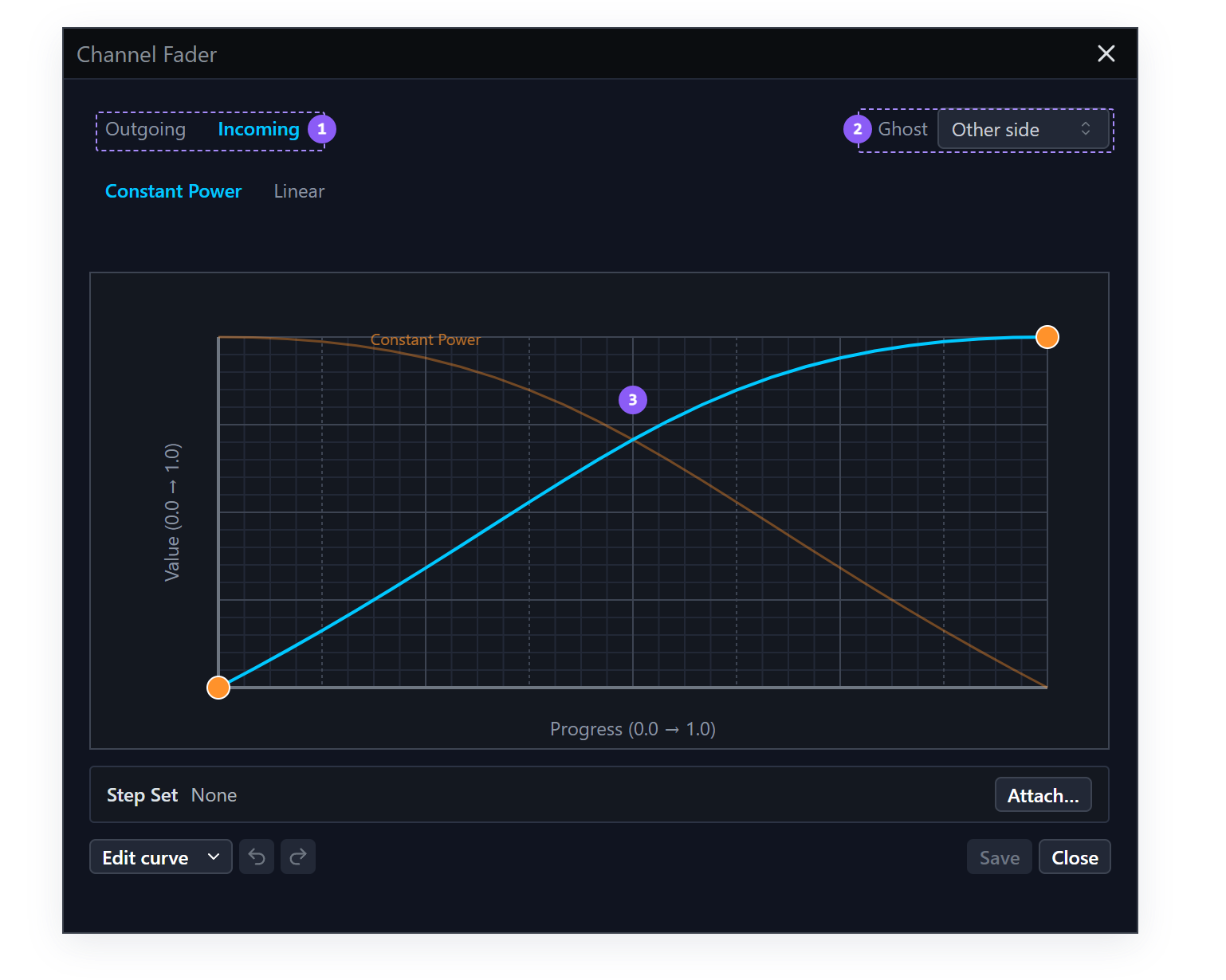
- Side tabs: Incoming is the side being edited.
- Ghost: set to Other side, so the outgoing curve draws underneath.
- Crossing point: well above the middle of the canvas, near 0.707. A linear pair crosses at 0.5.
Click Save & Close, then the Save to library icon on the detail view.
5. Run it
Close the Library window, load My Constant-Power Crossfade in the fusor picker, start your outgoing deck, and run it.
The dip is gone. Same two faders, same travel, different shape.
Run 2: The crossfader out of the path, then back
Crossfader bypass takes the crossfader out of the audio path. With bypass on, deck level comes from the two channel faders alone, and the crossfader's own curve contributes nothing wherever the fader happens to sit. Some DJ apps call it thru, through mode or pass-through. It is a state of your mixer.
It matters before a run because the crossfader is the Fusor player's progress actuator, so it travels the full width of every transition, driven by the player in Auto Run Mode and by your hand in Manual Run Mode. While it is still in the signal path, its own curve moves your volume levels in addition to whatever the channel faders are doing, whether the fusor or your hand is moving them. If the crossfader is not bypassed, parking it at the center position is not an option, since it has to move to advance the transition.
So a fusor that modulates deck levels needs the crossfader bypassed to have sole control of them. A fusor that modulates none relies either on the crossfader's own curve while it is in the signal path, or on you to modulate the channel faders with the crossfader in bypass. Fusor Studio allows for both.
The three deck-level setups in full are in Crossfader Setup and Deck-Level Modulation.
Your fusor now modulates both channel faders, so it needs the crossfader bypassed. If the crossfader is still assigned to those decks, your DJ application's crossfader curve multiplies against the constant-power shape you just built.
The answer is the pair from Bypass the crossfader, and put it back: bypass the crossfader for the length of the run, and assign it again afterwards. The steps below attach the example pair, Crossfader Bypass On and Crossfader Bypass Off, each with a deck-level action beside it. If you made your own copies in that tutorial's Part 2, attach My Crossfader Bypass On and My Crossfader Bypass Off in their places.
6. Attach the actions
Two more examples ship for this:
- Set Channel Faders sets the outgoing deck's channel fader to full and the incoming deck's to zero.
- Channel Faders Full sets both channel faders to full.
- Actions tab on the fusor.
- Pre-run section → + Add action → Set Channel Faders, then + Add action → Crossfader Bypass On.
- Post-run section → + Add action → Crossfader Bypass Off, then + Add action → Channel Faders Full.
- Check the order in both sections against the table below. Use the Up / Down chevrons on the rows to fix it; each list runs top to bottom.
Why the order matters
Bypass removes the crossfader's attenuation. Each fader change has to happen while the crossfader is still in the path and attenuating that deck, so you never hear it. Take deck A outgoing and deck B incoming:
| First | Then | |
|---|---|---|
| Pre-run | Set Channel Faders lowers B. The crossfader is hard over on A, so B is already silent. | Crossfader Bypass On. B is at zero, so nothing comes in. |
| Post-run | Crossfader Bypass Off. The crossfader is hard over on B, so A is silent. | Channel Faders Full raises A, still behind the crossfader. |
In either section, the other order brings a deck in at full volume.
The pre-run half works on the incoming deck and the post-run half on the outgoing deck. The roles swap at the end of the run, so in back-to-back transitions these are usually the same deck: A is raised after it goes out, and lowered again at the start of the next run, when it comes back in. Between runs both faders are up with the crossfader on the deck that is playing, which is where you would leave them after mixing by hand.
The crossfader starting hard over on the outgoing side is the one thing the actions cannot set for you, which is why it is in Before you start. Start with the crossfader in the middle and the outgoing deck's level jumps up the moment the bypass is applied.
Keeping Channel Faders Full a separate action means you can disable it on its own: switch it off on its row and the crossfader is still assigned again at the end of the run.
7. Run it again
In Traktor, assign Deck A to the left of the crossfader and Deck B to the right, put the crossfader hard over on the outgoing side, load the fusor, and run it.
Watch three things:
- Nothing jumps when the run starts.
- Moving the crossfader does not change deck level. It is out of the signal path, and the channel faders alone set deck level.
- At the end, A and B are assigned again, and both faders are up.
Crossfader Bypass Offsets A to the left and B to the right. With your own copies attached, the layout you set comes back instead, becauseMy Crossfader Bypass Offrestores the snapshotMy Crossfader Bypass Ontook.
Post-run actions and the role swap
Post-run actions fire after the transition completes and after the Fusor player has swapped roles.
An action that named outgoing.* to undo a pre-run step would resolve to the deck that was incoming
in the run that just ended.
Crossfader Bypass Off names decks A and B by letter, and My Crossfader Bypass Off names no
addresses at all: a snapshot remembers the controls it captured, so restoring one is unaffected by
the role swap. When a post-run action undoes a pre-run action, address decks by letter or restore a
snapshot. Channel Faders Full uses roles and is unaffected, because it sets both decks to the
same value.
Abort skips post-run. If you abort mid-run, the bypass stays on. Fire Crossfader Bypass Off from its pad to assign the decks again, which is the other reason it is worth having on a pad. Leave Channel Faders Full alone after an abort: mid-mix, it brings the outgoing deck back up.
What you learned
- Why a linear crossfade dips, and what constant power does about it.
- That action order matters when one step removes an attenuation another step relies on, on both sides of a run.
- That a post-run action runs after the role swap, so one that undoes a pre-run step addresses decks by letter or restores a snapshot.
- That a separate action can be disabled on its own, where a step inside another action cannot.
Where to next
- Import a domain: give the Channel Fader fusor an EQ swap.
- When something goes wrong: every common failure, induced on purpose while nothing is at stake.
- Crossfader Setup and Deck-Level Modulation: the three setups in full, and how deck levels follow the mix point.
- Pre-run Actions: ordering, duration overrides, what happens when one fails, and the Auto/Manual difference.
- Curve Editor: every gesture on the canvas, including the point menu and Edit curve menu, the curve clipboard, and per-curve undo/redo.
- Manual overview: the subject-by-subject reference for everything else.