Author Your First Fusor
In Change a curve and run it again you opened a shipped fusor, reshaped a lane, saved it and ran the difference. Every one of those gestures was on a fusor somebody else authored.
This tutorial starts from nothing. You build a volume crossfade from an empty draft, the outgoing deck's channel fader coming down as the incoming deck's goes up, and then you keep it. What is new here is create and save; the canvas work is a shorter version of what you already did.
Nothing you do here can break an existing fusor.
Before you start
- Change a curve and run it again done, so the canvas, the anchors and the bezier handles are familiar.
- Three terms:
| Term | What it is |
|---|---|
| Domain | A group of related parameters the fusor modulates: the channel fader, the 3-band EQ, an FX unit. Each domain holds both sides, outgoing and incoming. |
| Parameter binding | One authored parameter inside a domain. The channel fader has exactly one. |
| Curve | The shape that parameter follows from 0% to 100% progress. |
1. Create the fusor
- Click the book icon in the player window's toolbar. The Library window opens.
- Make sure Fusors is selected in the window header, then the Fusors sub-tab.
- Click the blue + in the list header (tooltip New Fusor).
The fusor's detail view opens straight away, and the list row is marked unsaved. Nothing is on disk yet: this is a draft held in memory, and the header says so. The subtitle reads Unsaved, and beside it is a disk icon, Save to library.
That is the one exception to how this editor normally works. Every other fusor autosaves as you type; a draft waits for you to commit it, because there is no file to write to yet.
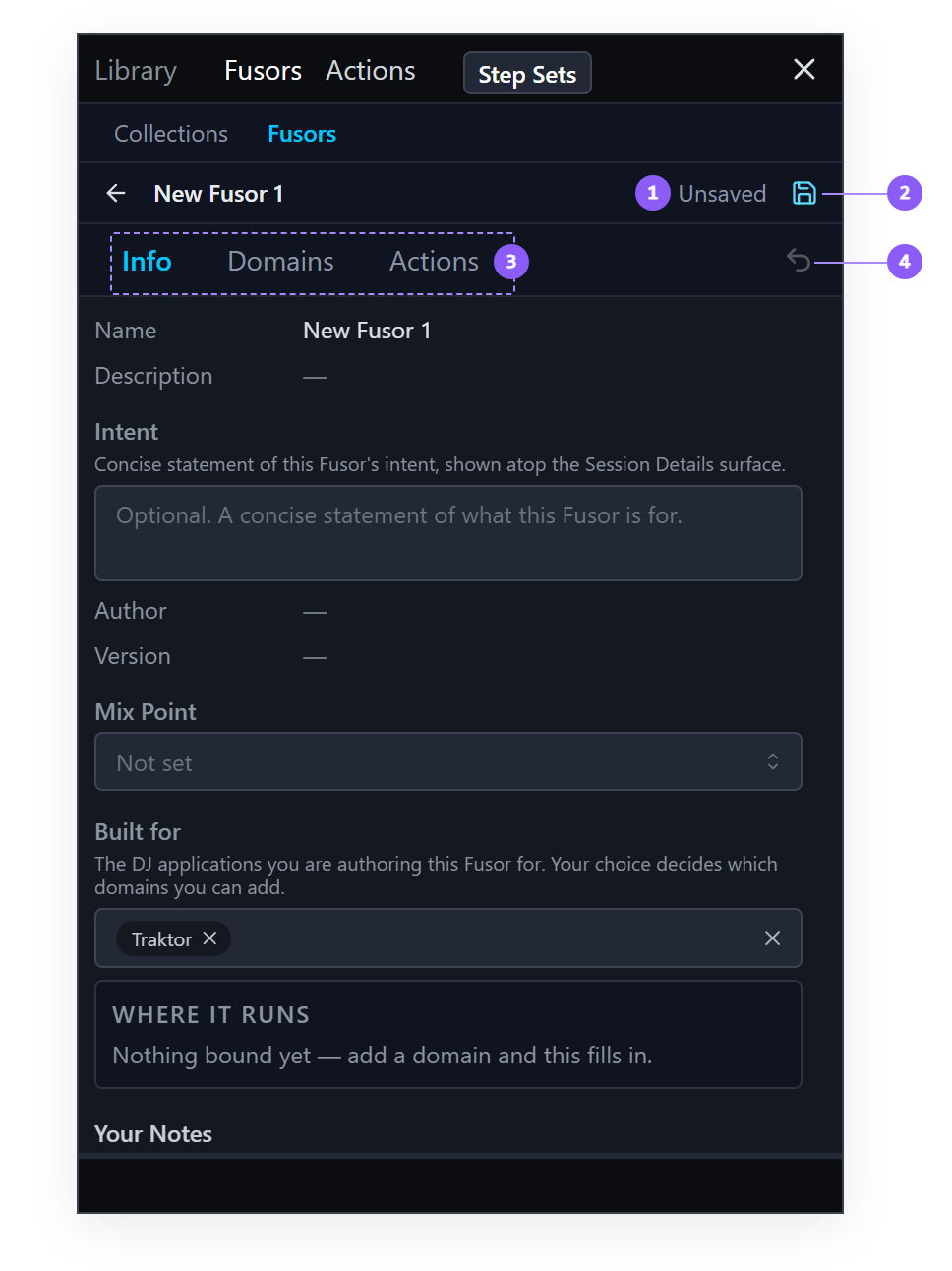
- Unsaved: the draft is held in memory and is not yet on disk.
- Save to library: the disk icon. It writes the draft into your library.
- Tabs: Info, Domains and Actions.
- Undo: reverses your last text edit.
2. Name it
The detail view has three tabs: Info, Domains, Actions. You start on Info.
Click the Name field and type My First Crossfade. Click out of the field to commit. Text
fields on this surface commit on blur.
The filename follows the name. When you save, Fusor Studio derives the file name from what you typed
and writes it into your library's fusors/ folder.
3. Fill in two more fields, and deliberately skip one
Still on the Info tab:
- Author: your name. It is saved in the file, so anyone you send it to sees it.
- Mix Point: pick Middle.
Mix Point says where the listener's attention shifts from the outgoing track to the incoming track. It is the field you read on other people's fusors in Channel Fader; this is the first time you have written one. For a straight volume crossfade Middle is the right value: attention shifts about halfway, both tracks play on past that, and the outgoing plays out. Every value is described in Mix Points.
It also sets where a Mixed run stops: on a Middle fusor, at the halfway mark. The Fusors list can sort by it.
Now the field to leave empty: Built for.
Built for tags a fusor for one or more DJ applications, and it filters which domain types you are allowed to add:
An untagged fusor accepts only untagged domain types. Exactly two are untagged, Channel Fader and 3-Band EQ, because those are the only two controls every DJ application has. Set Built for and the rest of the list appears; leave it empty and you get a fusor that runs anywhere.
We want the universal one, so leave it blank. If you later add an FX domain, tag the fusor first.
4. Add the domain
- Click the Domains tab. It is empty, with Add Domain and Import Domain buttons below.
- Click Add Domain. A small popover opens headed Add domain, listing the domain types this fusor can still add. As promised, there are two: Channel Fader and 3-Band EQ.
- Click Channel Fader.
A Channel Fader card appears on the Domains tab, holding an outgoing Volume parameter and an incoming Volume parameter at once. Neither has a curve yet, so the card shows a blank placeholder on each side.
A fusor's curves attach to roles. "Outgoing" means whichever deck is currently mixing out, and that deck changes between runs, as you saw when Channel Fader ran back the other way. A curve does not reference Deck A or Deck B, so the same fusor keeps working after roles swap.
5. Draw the outgoing curve
Click the Channel Fader card's header. The Domain Editor opens in its own window, on the canvas you know: left to right is progress, bottom to top is the value the control gets. It has side tabs above the canvas, Outgoing and Incoming; with neither side drawn yet, it opens on Outgoing.
Below the side tabs are two variant tabs, Variant 1 and Variant 2. A Channel Fader holds up to two fader curves, and the fusor plays one of them. You draw on Variant 1.
- The canvas reads No binding (click to create). Click it. A small Variant name window opens.
- Type
my fadeand click OK. The first variant tab now reads my fade, and a two-anchor curve appears, flat across the middle of the canvas at 0.5. The name is optional: Cancel still creates the curve, and the tab keeps reading Variant 1. - Drag the left-hand end anchor all the way to the top.
- Drag the right-hand end anchor all the way to the bottom.
The line now slopes from full at 0% down to silence at 100%. That is a fade-out, and it is the whole of the outgoing side.
6. Switch to Incoming, and shape one handle
- Click the Incoming side tab, above the canvas.
- The variant tab already reads my fade: a variant's name is shared by both sides. The canvas reads No binding (click to create) again. Click it, and the curve appears without asking for a name. Drag the left-hand anchor to the bottom and the right-hand anchor to the top.
- Set the Ghost dropdown at the top right of the side-tabs row to Other side. A faded copy of the outgoing curve draws underneath the one you are editing, and the two should meet cleanly in the middle.
- Click the left-hand anchor of the incoming curve and drag its handle to the right, keeping it low. The curve now rises slowly from silence and more steeply toward the end.
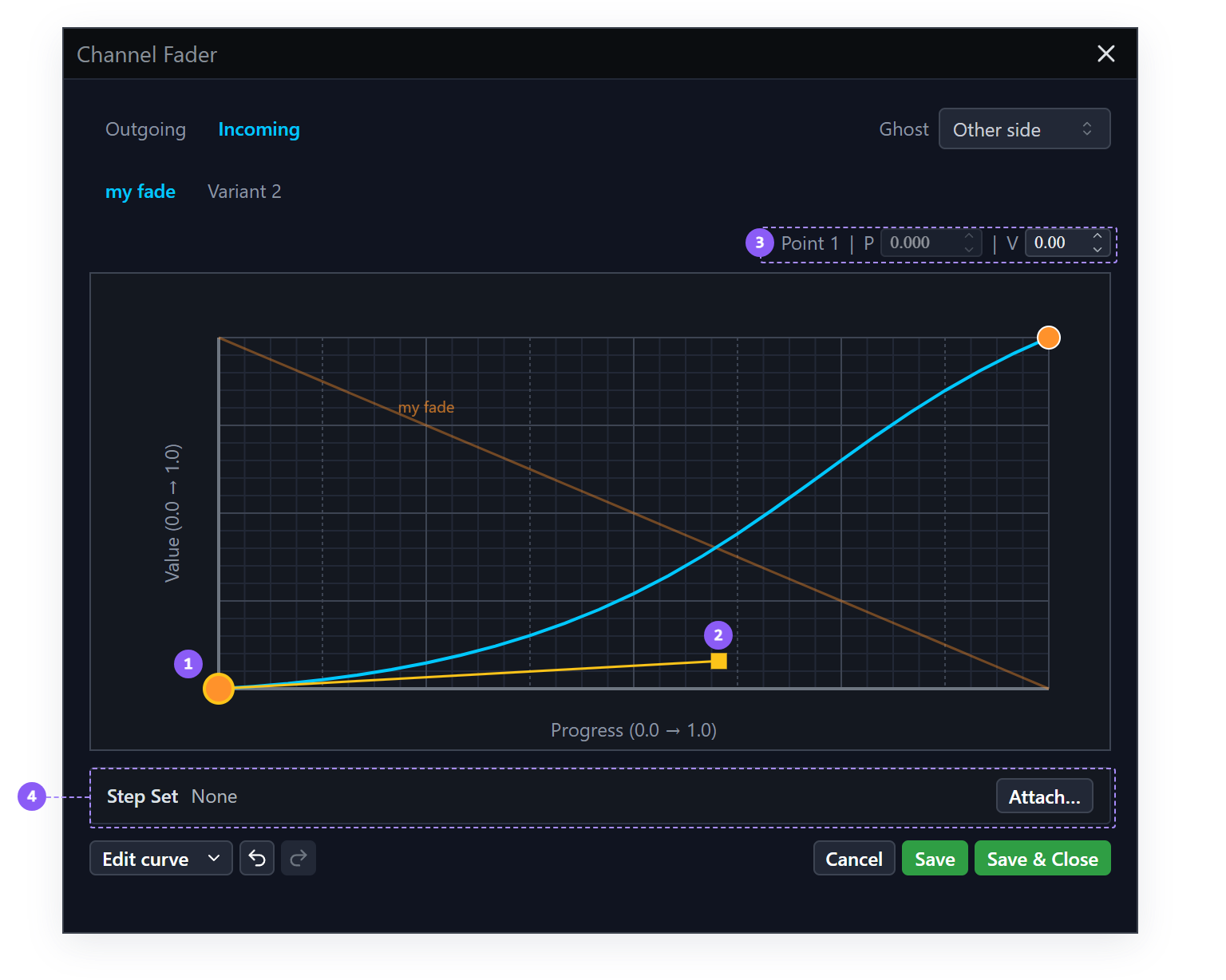
- Selected anchor: the yellow outline marks the anchor you clicked.
- Bezier handle: the square at the end of the stem, dragged right and kept low.
- Anchor readout: the selected point, its progress (P) and its value (V). You can type into V, and into P on any anchor between the two ends.
- Step Set: None, so the lane is continuous.
Every gesture on that canvas, including the modes the point menu and Edit curve menu offer and how to retrieve a handle you dragged off the edge, is in Curve Editor.
Leave Variant 2 blank. A variant with no curve is not written to the file, and its tab stays in the Domain Editor, so you can draw a second curve there later.
The Domain Editor does not autosave. The detail view commits as you go; curve work has its own Save. Click Save & Close in the bottom right.
Back on the Domains tab, the Channel Fader card shows a curve on both sides.
7. Save the fusor
Back on the detail view, click the Save to library icon in the header.
The draft is written into your library's fusors/ folder, the Unsaved marker disappears, and
from this point on the fusor autosaves. Every edit commits a fraction of a second after you make it.
Before that click, the draft existed only in memory, and loading another fusor would have discarded it. After it, the fusor is a file like any other.
If the save is refused, the message says why. A fusor needs a name, at least one domain, and at least one parameter with a curve. Your edits stay where they are; fix the problem and save again.
The Undo icon at the right end of the tab bar (or Ctrl+Z, Cmd+Z on the Mac) reverses your last text edit: a name, a description. It does not undo structural work such as adding or deleting a domain, or anything you did on the canvas. That is why the delete affordances ask you to confirm.
8. Run it
Close the Library window. Then:
- Click the fusor picker and load My First Crossfade.
- Start your outgoing deck and run it.
Both channel faders move, one down and one up, along the shapes you drew.
If the fade sounds like it dips in the middle, that is real. Two linear fades crossing at half each are quieter than either alone at full. Shaping the handles is how you fix it, and the shipped Channel Fader fusor's Constant Power variant is the worked answer, with curves that hold perceived loudness steady across the transition. The next tutorial builds your own.
What you learned
- That a new fusor is a draft in memory until Save to library writes it, and autosaves after.
- That a fusor is domains, each holding parameter bindings, each holding a curve.
- That a domain holds both sides from the moment you add it, one card per domain type.
- That curves attach to roles, outgoing and incoming.
- That a Channel Fader holds two variants, and that the first curve on a variant asks for its name.
- That an untagged fusor only offers universal domain types.
- That the detail view autosaves and the Domain Editor does not.
Where to next
- Build a constant-power crossfade: the tutorial that fixes the dip.
- Domains: the full Add and Import flows, per-card preflight.
- Authoring Overview: the editing model, autosave, undo scope, the mid-transition lock, where files live.
- Curve Editor: every gesture on the canvas.