Auto Run Mode
So far you have moved every transition yourself. In Auto Run Mode the clock does it: you set a length in bars and a tempo, press PLAY, and the Fusor player advances the transition from 0% to 100% at an even pace. Your hands are free for whatever else the mix needs, which might be a channel fader, an effect, or the next track.
Six runs, all on EQ Swap.
From this tutorial on, every run can be done by hand or in Auto.
Before you start
- EQ Swap done.
- Your crossfader still in bypass, where Channel Fader put it.
- Your controller's crossfader mapped, so Fusor Studio receives its MIDI. Setup's DJ controller walk does this first, and run six needs it when you take a run over by picking up the crossfader.
- Two tracks that blend across the whole transition, the same pair you used for EQ Swap.
Run one: On the clock, and Abort
1. Switch to Auto, and set the tempo
Load EQ Swap, then click Auto, the left end of the Run Mode switch. Once lit it shows a timer.
The middle of the progress strip, empty in Manual, now fills in. In Auto, the length and tempo you set here set how long the run takes. The readout shows three numbers:
| Readout | What it is |
|---|---|
< N > bars | How many bars the transition lasts. The chevrons step through 1, 2, 4, 8, 12, 16, 24, 32, 48 and 64. Click the number itself to type any whole number from 1 to 99. |
@ NNN.N BPM | The tempo the transition runs at. Click it to edit. The Fusor player does not read BPM from your DJ application, so this is yours to set. |
= NN.Ns | The duration the other two produce: how long the run takes, assuming a constant tempo. |
The length is the whole transition, start to finish, not just the stretch up to the mix point. Set it to match how you want to mix the two tracks. Click the BPM figure and type the tempo you are mixing at: your beatmatched tempo, or the incoming deck's tempo. The duration is based on the tempo.
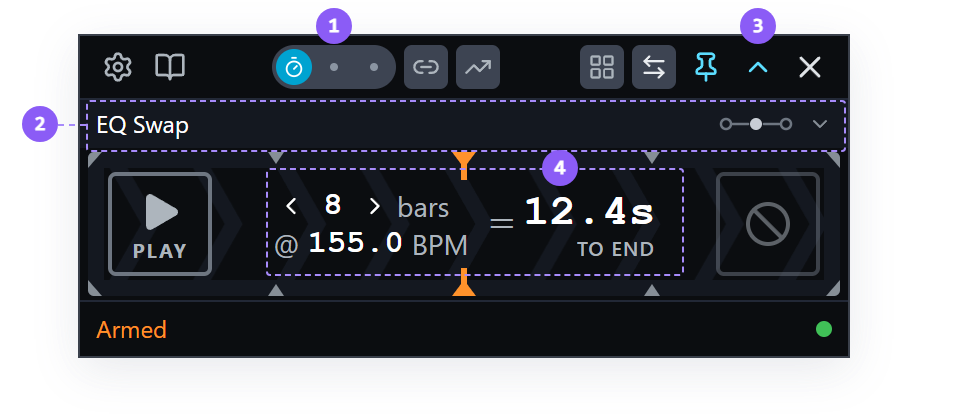
- Run Mode switch: Auto, the timer, is lit blue.
- Picker row: labeled with the loaded fusor. Clicking it reopens the Library to load a different one.
- Expand arrow: in the toolbar, opens Session View: the fusor's intent, the domains it modulates, and the actions it runs.
- Timing readout: the bar count over the BPM. The chevrons step the bar count, and both numbers are click-to-edit. Beside them is the time to the end of the transition, worked out from the bar count and BPM.
2. Prepare your decks
Set the decks up the way EQ Swap's first run had them:
- Outgoing channel fader at full, incoming at zero.
- EQ knobs neutral on both decks.
- Crossfader hard over on the outgoing side. In Auto the Fusor player moves the crossfader from wherever it sits when the run starts, and sends nothing to your DJ application before then, so positioning it is yours to do.
- Start the outgoing deck playing, and cue the incoming track.
In Auto there is no arm step. The left-hand transport button is a PLAY button. It stays gray
until the outgoing deck is playing; once it is, the button turns yellow and the status line reads
Armed: Press Play to start.
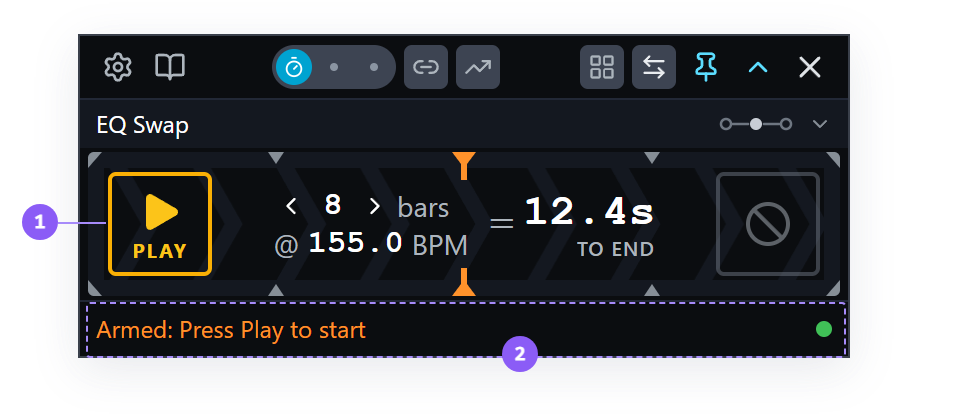
- Transport button: lit yellow, showing a PLAY face. It is lit only when the press will be accepted.
- Status line:
Armed: Press Play to start.
3. Run it
Start the incoming deck so its mix-in point meets the outgoing track's mix-out point on the transition's Middle mix point, and press PLAY as it starts. One press starts the transition.
If you are unsure what we mean by starting the incoming deck so the mix-in and mix-out points meet on the mix point, see Starting a Transition for examples.
Four things happen:
- Your crossfader begins traveling towards the incoming deck. The Fusor player moves it from the clock. It is in bypass, so it has no effect on deck levels.
- The progress meter fills behind the transport buttons, and the countdown in the middle of the strip counts down to the end of the transition.
- The EQ knobs and channel faders move along their curves, exactly as they did when you moved the crossfader yourself.
- The status line switches to
Playingin green, and the button shows PAUSE.
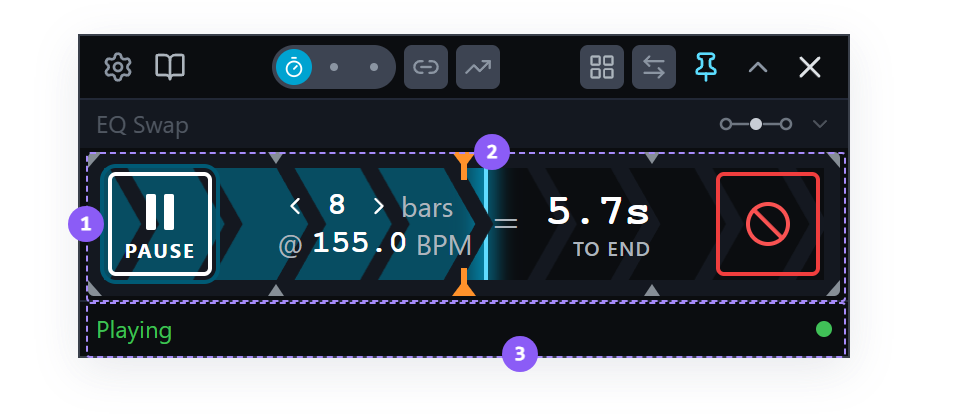
- Progress meter: fills from 0% to 100% as the run advances. The chevron pattern behind it shows the direction of the transition.
- Mix mark: the orange marker shows where the fusor's mix point falls, here the middle of the transition. An Auto run passes straight through it.
- Status line:
Playing. The transport button now shows a PAUSE face, and the readout counts down the time left to the end of the transition.
4. Abort halfway through
About halfway through, press and hold the Abort button: the large button at the right-hand end of the progress strip. A radial fill grows outward from the center while you hold, and the abort fires when the fill completes, after roughly 0.4 seconds. A quick click does nothing at all, and letting go early cancels the abort silently.
Abort is the button for a mix that has gone wrong, and Auto is where you will want it most: the clock keeps moving until you stop it.
5. What an abort leaves you with
The transition ends the moment the hold completes, immediately and permanently. There is no resume.
Nothing is put back. Your mixer is exactly as the transition left it: EQ bands part-swept, both channel faders mid-travel, the crossfader wherever it had reached.
An abort does not run the completion sequence. The roles do not swap and no post-run actions fire. The fusor stays loaded and the Fusor player returns to Idle.
A second later the Abort button becomes RESTORE, white rather than red. Hold it the same way you held Abort and the controls the Fusor player recorded before the run go back where they were. Here that is the outgoing deck's three EQ bands. The Channel Fader domain ships on Leave, and a Leave domain is never recorded, so there are no fader positions to offer back.
For the first second after an abort the button still reads Abort and still acts as Abort, so a second press cannot trigger RESTORE by accident. After that the RESTORE offer stands until you start the next transition, load a different fusor, or press it. Pressing it puts controls back and does nothing else.
An abort also sets which deck is outgoing from where the crossfader ended up. Abort late, with the crossfader on the incoming side, and the roles can come back swapped. Check the direction indicator before you press PLAY again.
The whole of it is in Aborting and Transport Controls → The Abort button.
Run two: Length, and where progress starts
6. Set a shorter length, and center your crossfader
Press RESTORE if you want your EQ back, then set the decks up as in step 2.
Halve the length you set, with the left chevron on the bars field or by typing the number: from 16 bars to 8, for instance. The duration halves.
Now put your crossfader in the center, by hand, before you press anything.
In Manual Run Mode the crossfader's position is the transition's position, so the center looks like the place a run would start halfway through. Run it and find out.
7. Run it
Press PLAY.
The progress meter starts at 0% and the run plays the whole fusor from the beginning. Two things changed from run one, and they do different things.
Where the crossfader starts changes nothing about the timing. In Auto Run Mode the clock advances progress, not the crossfader. The Fusor player moves the fader to match, starting from wherever you left it and ending at the side it is mixing toward. From the center it has half the distance to cover in the same time, so it travels more slowly. The run takes exactly as long as it would from the edge, and every other control follows the same curves at the same moments, because a curve is a function of progress.
The length is what sets the timing. You halved it, so this run takes half as long as run one, and the whole fusor plays out within it. The length is a property of the run, not of the fusor, so a fusor works at any length without being re-authored. Click the number itself rather than a chevron and you can type any length from 1 to 99 bars, such as 7.
Let it reach 100% and press END at the completion wait.
A completed run leaves your DJ application's crossfader at the end it was mixing toward. Your controller's crossfader did not move, so it is now out of position. The crossfader is in bypass, so its position changes nothing you can hear, and the next Auto run lines the two up again.
If you want to change which deck is outgoing and your DJ application's crossfader is on the wrong side, sweep your controller's crossfader across until it picks up the DJ application's crossfader (soft takeover catches it where they meet), then bring it back. While the Fusor player is idle, it decides which deck is outgoing from where the crossfader rests. The swap button changes which deck is outgoing directly. With its default settings it also sets the channel faders and moves your DJ application's crossfader to the new outgoing deck's side. See Manual Role Swap.
Set the length back to the duration you chose in step 1 for the rest of this page.
Run three: Pausing
8. Pause the fusor
Set the decks up as in step 2, with the crossfader on the outgoing side, and press PLAY.
About halfway through, press PAUSE.
The fusor stops sending, so the controls hold exactly where they are. The run's end time does not change, so resuming runs the remainder faster to still finish on the target bar. You might pause to make a control adjustment, or to give yourself a moment before taking a control or the whole run over. Press PLAY to resume.
Catch-up has a maximum rate, and it is twice the authored pace. On resume, the Fusor player recomputes the rate from what is actually left: the authored remainder divided by the wall clock still available. A longer pause produces a faster remainder, up to double speed and never beyond it. It also runs no faster than the remaining time requires.
Running out of time does not abort the run. When double speed is not enough to make the time back, the run holds at double speed and finishes late. Compressing the remainder into the time left would make the controls jump audibly, so the run finishes late instead.
The countdown tells you when a pause has gone too far. While the fusor is paused, the countdown blinks about three seconds before the point past which the run can no longer finish on time, then turns solid red once that point passes. Blinking means resume now, or take the mix by hand. Red means the run will finish late whatever you do next, and each further second of pause is another second of lateness.
Repeated pauses add up. Each pause is measured against the time the run has left at that moment, not against the run's full length, so a second pause has less room than the first and reaches red sooner.
9. Stop the incoming deck instead
Let the run get going again, then stop the incoming deck in your DJ application.
This stops the transition clock as well as the output. When you restart the deck, the run continues at the authored pace, and the time the deck was stopped is not made up. You might do this if you started the transition too early.
Both hold the run. A pause keeps the run's end time and speeds up the remainder. Stopping the incoming deck stops the clock, so the end time moves later. See Transport Controls → Pause vs Abort.
Let the run finish and press END.
Run four: Switch a domain off
EQ Swap modulates the channel faders. This run takes them back before the run starts.
10. Turn the Channel Fader domain off
Open Session View. Find the Channel Fader card. In its header, beside the name, is an enable switch. Click it.
The card dims, and the status line reads:
Channel Fader domain disabled.
One switch covers both sides. A domain spans the two deck roles together and its halves enable together, so the fusor cannot modulate the outgoing fader while leaving the incoming one to you.
The 3-Band EQ card is untouched and still lit. This fusor now modulates six EQ knobs and nothing else.
That switch is a session edit, like the 1 / 2 variant switch in
Channel Fader and the End of run dropdown on EQ Swap,
and it behaves the same way. It takes effect immediately, there is no Save button, and it is
written to the .fusor on disk. Step 14 is where you put it back.
If you prefer to run with your crossfader live, in the signal path, switch the Channel Fader domain off on the fusors you run, or author fusors without one. To take the crossfader out of bypass, see Bypass the Crossfader, and Put It Back.
11. Set up, and leave the incoming deck stopped
Same two tracks and the same rig as step 2, with three differences:
- Outgoing channel fader at full, incoming channel fader at zero, and this time they stay there. Nothing in the fusor moves them.
- Leave the incoming deck stopped. In Auto Run Mode a transition starts without that deck playing, so when the incoming track arrives is up to you.
- Leave the incoming deck's EQ knobs wherever the last run ended. Step 13 is about what the Fusor player does with them.
12. Run it, and bring the track in yourself
Press PLAY.
The six EQ knobs move as they always have: the outgoing set coming down, the incoming set coming up. Neither channel fader moves, because the domain that would have moved them is switched off.
Now bring the track in on your own timing. Somewhere in the second half of the run, start the incoming deck and push its channel fader up, taking the outgoing one down as you go. The run continues on the clock while you do this: the progress meter does not pause and the EQ swap does not wait.
Let it reach 100% and press END.
13. Why nothing was blocked
The incoming deck's three EQ knobs were left wherever the last run's ending put them, which is not
where this fusor's incoming curves begin. The Fusor player normally blocks an incoming-deck control
that sits too far from its curve's start, because moving it would be an audible jump on a deck that
can be heard, and it names what it blocked on the status line as CTL1, or counts them as CTL2
when there is more than one. How far is too far is Inaudible Control Threshold in Settings →
Guards, which ships at 0.05.
Nothing was blocked here, because the check is waived when the incoming deck cannot be heard. The Fusor player counts that deck as inaudible when any one of four things is true:
- The crossfader is in the signal path and hard over on the outgoing side. A crossfader in bypass does not affect what you hear, so this condition does not apply on your rig.
- The incoming channel fader is at or below the volume threshold.
- The incoming deck is not playing.
- All four of the incoming deck's stem levels are at or below the volume threshold.
Your rig had two of them: the fader at zero, and the deck stopped. A control nobody can hear cannot be moved disruptively, so the curves run as authored.
ERA applies to the outgoing deck, which is audible, so a control away from its curve is brought onto the curve.
The thresholds are in Settings → Inaudible Detection, and the two codes are CTL1 and CTL2.
14. Put the domain back
Open Session View and click the Channel Fader card's enable switch back on. The card undims.
Do it before you move on. The switch wrote to the file, so the copy of EQ Swap in your library currently does not modulate the channel faders, and the rest of this page describes one that does.
With the domain off, the fusor modulated the EQ and you manipulated the channel faders. A fusor modulates exactly the parameters its domains name, and nothing else on your mixer.
A fusor is a set of domains, each with its own enable switch. Switch a domain off and you control those parameters by hand for the run.
Run five: Tempo Ramp
15. Turn the tempo ramp on
Everything so far has assumed two tracks already at a workable tempo. This run uses a third track, several BPM from the outgoing track, far enough that running the two together untouched is audibly wrong.
Set the decks up as in step 2, with the third track cued on the incoming deck. The outgoing deck is playing.
The rightmost icon in the toolbar's middle group is a rising trend line with an arrowhead. That
is the Tempo Ramp toggle. Dark means off. Click it, and it turns yellow: switched on, but not
yet set up. Hover it to see what it is waiting for. The setup sequence runs as soon as the
outgoing deck is playing, and once it has run the toggle goes solid blue, which means the
incoming deck is synced to the outgoing deck and the ramp is ready. The status line changes from
Armed: Press Play to start to Armed with Tempo Ramp: Press Play to start.
Turn it on before you press PLAY. The ramp is a setup step that runs ahead of the transition.
The Tempo Ramp is the one Fusor Studio feature that changes your decks' tempo: it syncs the incoming deck and moves the tempo faders. With it off, tempo is entirely in your hands.
What the ramp does to your tempo range. A tempo fader's resolution depends on the range it is set to: a fader on ±6% moves in much finer steps than the same fader on ±50%. Before the ramp modulates anything, it reads each deck's current range and sizes it to the shift it actually needs, plus about 15% headroom. It widens a range that cannot hold the shift, and it narrows one only when that range is more than twice as wide as it needs to be, so an ordinary working range is left alone. It never sets a range narrower than ±6%, so a deck on ±2% or ±4% is widened to ±6% before the ramp starts. That leaves the correction at the end of the ramp room to move the fader. Traktor offers fourteen ranges: 2, 4, 6, 8, 10, 12, 14, 16, 18, 20, 25, 35, 50 and 100 percent. The ramp always sets one of them.
When the transition ends, the ramp puts each deck's tempo range back. Tempo range restore in Settings → General decides how. Always, the default, restores the range it found, even if that leaves the tempo fader at the end of its travel. Keep usable leaves a widened range in place rather than pin the fader. This setting is separate from End of run (Leave, Restore, Home), which applies to the fusor's domains and not to the tempo range.
By default the ramp also turns key lock on for each deck where it is off, and turns it back off on those decks when the transition completes. Turn on key lock during tempo ramps in Settings → General controls this.
16. Run it
Start the incoming deck so its mix-in point meets the outgoing track's mix-out point on the mix point, as in step 3, and press PLAY as it starts.
As the transition advances, the Fusor player modulates the outgoing track's tempo toward the incoming track's natural tempo. Since it is synced, the incoming track follows the tempo of the outgoing track, and by the end of the transition it is at its natural tempo. How close it gets to the exact tempo depends on the tempo fader's resolution at its current range.
The tempo change follows progress like every other control in the fusor: halfway through the run, the outgoing deck's tempo is halfway to its target.
The ramp works in Manual Run Mode too. Turn it on before you arm, and the status line reads
Armed with Tempo Ramp: move crossfader to start. The tempo then follows the crossfader: halfway
across, the outgoing deck's tempo is halfway to its target.
at the Auto Run Mode walk — the ramp's drive follows progress in Manual Run Mode (TempoRampController.emitAutomation: start + rebasedT·(target−start), emitted from onProgressTick ungated by authority); the endpoint correction is Auto-only (runEndpointCorrectionIfDue requires progressAuthority 'auto'), so a Manual run may land a little short of the exact tempo. D-ARC.2 walk-gate item (K-TUT.6: moved from Simple EQ Swap run three).
The toggle resets to off at the end of each transition, whether it completes or aborts. To ramp the next run, press the button again. For additional detail see Transport Controls → The Tempo Ramp toggle.
Let it reach 100% and press END.
Run six goes back to the two tracks from run one.
Run six: Taking an Auto run over
An Auto run can become a hand run at any moment. There are two ways to take it over: hold Manual on the Run Mode switch, or pick up the crossfader on your controller. Run it twice, once for each.
17. Hold Manual
- Set the decks up as in step 2 and press PLAY.
- Let it run to about a third.
- Press and hold Manual on the Run Mode switch for 0.4 seconds, the same hold Abort uses. A quick press does nothing while the run is under way, and letting go before the hold completes cancels it.
The transition converts to manual from that point on. The crossfader drives progress, the status
line changes to Manual, and the timer stops. This is whole-transition takeover, and it is
one-way: you can take an Auto run over by hand, and a manual run cannot return to Auto.
- Move the crossfader to the end and press END. Your DJ app's soft takeover holds the crossfader until your hand reaches the position the run left it at; progress follows it from there.
18. Pick up the crossfader
This one needs Allow crossfader takeover during a run on, in Settings → Guards under Takeover. It ships on, and it requires you to have mapped your hardware controller's crossfader so Fusor Studio can monitor it.
- Set the decks up as in step 2, with the crossfader on your controller hard over on the outgoing side, and press PLAY.
- Let it run to about a third. The Fusor player is moving the crossfader toward the incoming side, and the one on your controller is still where you left it.
- Slide your controller's crossfader slowly toward the incoming side. The chase bar covers
the picker row, as it did for the channel fader on EQ Swap: it names the Crossfader,
with
Slide rightorSlide leftfor the direction, the player's position as a line and your hand as a white dot. - Keep going until the dot reaches the line. That is the pickup. The lane turns green and
reads
The transition is yours · Manualfor three seconds, the Run Mode switch moves to Manual, and the status line readsManual. From here the run is the same manual run the first way gave you, and the crossfader is the clock. - Move the crossfader to the end and press END.
With the setting off, or with no MIDI mapping for your controller's crossfader, moving it takes nothing over and the Fusor player keeps moving it. Holding Manual takes the run over in every case.
The rules are in Arming and Running → Manual takeover.
By hand or on the clock
| Reach for | When |
|---|---|
| Manual Run Mode | You want to stretch a build, hold at a point, or set the pace as you go. |
| Auto Run Mode | You want an even pace over a set length, or your hands on something else. |
An Auto run can become a manual one at any moment, so you can start any run on the clock. A third mode, Mixed, runs on the clock up to the mix point and leaves the rest to you; Wash Out is where you meet it.
A fusor's author can say which mode they built it for, in the fusor's notes. Some fusors are written for a hand run: you advance to a point, hold there as long as you choose, and then move on. See Reading the fusor's intent.
What you learned
- That Auto Run Mode advances the transition on a clock set by bars and BPM, and that the duration is derived from the two.
- That the bars field takes any length from 1 to 99, and that a curve stretches to whatever window you give it, so a fusor works at every length without change.
- That Abort is a press-and-hold, that it leaves your mixer exactly as the run left it, and that RESTORE appears a second later for whatever the Fusor player had recorded.
- That an abort re-derives the deck roles from where the crossfader ended up.
- That in Auto Run Mode the whole fusor plays from 0% wherever the crossfader happens to be sitting, because the clock advances progress and the player moves the fader to match.
- That pausing the fusor compresses the remainder up to a maximum of double the authored pace, that the countdown blinks and then turns red once a pause has gone too far, that stopping the incoming deck stops the clock instead, and that neither ever aborts the run.
- That a domain's enable switch is a session edit which turns the whole domain off before a run,
covers both deck sides at once, and is written to the
.fusoron disk, so it has to be put back. - That switching the Channel Fader domain off, or authoring a fusor without one, is how you run with your crossfader live.
- That an Auto transition starts without the incoming deck playing, so you can start that deck part way through a run.
- That the player normally blocks an incoming-deck control sitting too far from its curve's start
and reports it as
CTL1orCTL2, and that the check is waived entirely when the incoming deck is inaudible. - That the tempo ramp is a setup sequence run before the transition, that it sizes each deck's tempo range before it modulates anything, and that it moves the outgoing deck to meet the incoming track's natural tempo as the transition advances, in Auto Run Mode and in Manual Run Mode.
- That Tempo range restore in Settings, not End of run, decides how each deck's tempo range is put back after a ramp.
- That an Auto run can be taken over two ways, by holding Manual for 0.4 seconds or by picking up your controller's crossfader where the chase bar shows the Fusor player has it, and that either way the conversion to manual is one-way.
Where to next
- Drop In: a fusor with a Start mix point, and a transition that starts itself when the incoming deck begins to play.
- Manual Run Mode vs Auto Run Mode: the comparison as a reference page.
- Transport Controls: every button, every state, in tables, including the bars stepper and the Tempo Ramp toggle.
- Arming and Running a Transition: the full lifecycle, including both kinds of pause.