Vocal Sustain
The fusor is Vocal Sustain. It works on the outgoing track one stem at a time. The drums, bass and other parts fade away across the run while stem filters high-pass them, so the outgoing vocal plays over the incoming track. In the last 20% of the run the vocal goes too, through a reverb. The incoming channel fader rises from zero across the run.
Stem volume, stem filter and stem FX send all sit upstream of the channel fader, so they stack with it: the stems shape what leaves the deck, and the fader sets how much of that reaches your output.
This is also the first fusor in these tutorials whose author wrote it to be run by hand, and it needs a particular kind of track. One run by hand, with two holds, then the same run in Mixed. Your crossfader stays in bypass.
Before you start
- Wash Out done.
- A stem-capable track, ready for the outgoing deck. Every outgoing card but the fader works on stem controls, so on an ordinary track most of the run goes to controls the deck does not have. Section 6 covers what counts as one. Do that before you sit down to this page.
- Your crossfader still in bypass, where you left it.
- Tutorials still the active collection.
- Traktor, with the Fusor Studio mapping loaded and FX Unit 1 free: in group mode, with a Reverb in slot 1. The stem domains in this fusor use Traktor's stem controls. With a DJ app that does not have them, Fusor Studio switches those cards off when you load the fusor, and the rest of it still runs.
- A second track for the incoming deck. It does not need stems.
1. Load Vocal Sustain and read the stack
Click the fusor picker and click the Vocal Sustain row. Open Session View with the expand arrow.
Above the stack sits the author's intent line: "Hold the outgoing vocal over the arriving track, then send it out through a reverb." Five cards:
| Card | What it modulates |
|---|---|
| Stems Volume | The four stem levels on the outgoing deck. |
| Stems Filter | A filter and an enable on three of the outgoing stems. The vocal's row is gray. |
| Stems FX Send | The four send enables on the outgoing deck, and the vocal's send level. |
| FX Unit | FX Unit 1's Dry/Wet, its three slot enables and slot 1's Amount, on the outgoing side. |
| Channel Fader | volume on each deck. Outgoing: held at full, then cut on the last tick. Incoming: eased up from zero across the run. |
Four of the five cards work on the outgoing deck alone. On the incoming deck the fusor modulates only the channel fader.
Session View stacks the cards in general signal-flow order: the stems cards first, because a stem is inside the track, then the FX unit, and the Channel Fader always last. Many effects act after the channel fader, so the order is approximate. This fusor's FX unit is in Post Fader mode, so the channel fader does not cut the reverb.
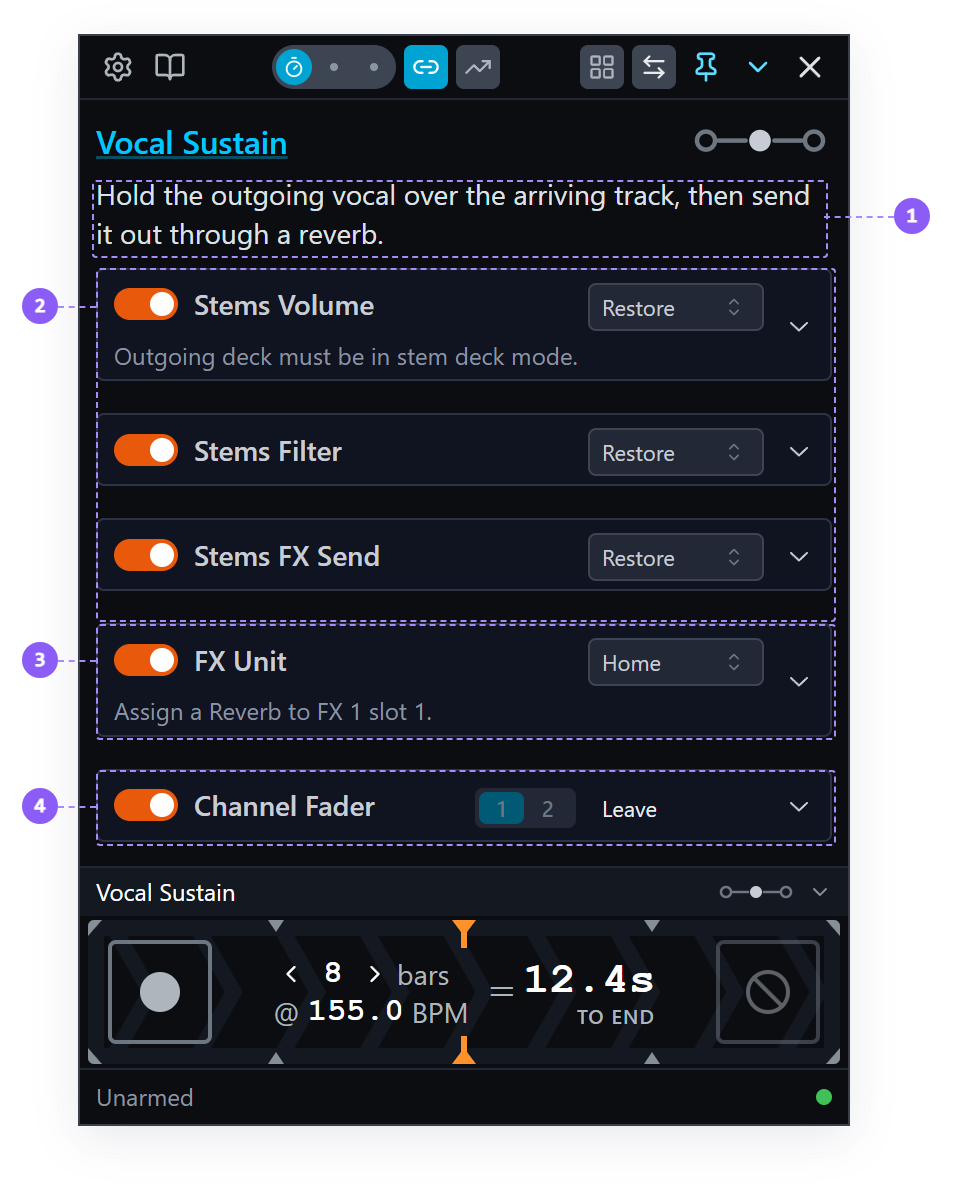
- Intent line: the author's statement of what the fusor does.
- Stems cards: first, because a stem is inside the track.
- FX Unit: above the Channel Fader, even in Post Fader mode.
- Channel Fader: the last card.
Vocal Sustain is filed as a middle mix point. By the middle of the run the incoming track is fully audible, and both tracks play on past it with the outgoing vocal on top. The middle is also the first hold in the author's notes, which matters when you run it in Mixed.
2. The four stem levels
Expand the Stems Volume card. The outgoing column holds four numbered rows, drums, bass,
other, vocals, one per stem, in that order. Hover a name and its curve appears.
| Lane | What it does |
|---|---|
drums | Full at the first tick, silent at the last. |
bass | The same shape as drums. |
other | The same shape again. |
vocals | Holds at full for the first 80% of the run, then falls to silence across the last 20%. |
The three that fade together are on a constant-power curve: they hold high early and lose most of their level late. At the halfway point they are still at about 0.7, and three quarters of the way through at about 0.35. On a straight line they would be at 0.5 and 0.25 there, and the outgoing track would sound thin much sooner.
The vocals lane is flat along the top until 80% of the way through, and then falls on the
same curve shape over the last 20%.
3. Stem filters: high-pass on three stems
Expand Stems Filter. Four rows, one per stem, and each modulated row has two lanes: a filter curve and an enable switch.
The filter lanes are bipolar. 0.5 is unity, below it cuts and above it boosts, so a stem filter
flat at the middle of the canvas is a filter doing nothing. Vocal Sustain modulates three of them above
0.5, into high-pass, so each part loses its low end. The distinction is set out in
Control Types → Unipolar and bipolar.
| Filter lane | Across the run |
|---|---|
| other | Unity until 15%, then up to 0.85 by 50% and held there. |
| bass | Unity until 30%, then up to 0.8 by 65% and held. |
| drums | Unity until 50%, then up to 0.75 by 85% and held. The gentlest of the three. |
| vocals | Gray. The fusor never touches the vocal's filter. |
So the filters engage one at a time, other first and drums last, while the three levels fade
together. The vocal is the only stem the fusor leaves whole.
The three enable lanes are switches, and each is held On from the first tick to the last. A stem's filter value reaches nothing until that stem's enable is on. A domain with a switch in the signal path has to author the switch as well as the value, or the curve is drawn against a closed gate. Switches are covered in Control Types → Gates.
4. A stem FX send: a reverb on the end of the vocal
Expand Stems FX Send. The same four rows, a send lane and an enable switch each.
The send lanes are unipolar. 0 is no send at all and 1 is the whole stem pushed into the FX
unit. On a stem deck, a stem reaches the deck's FX units only through its send: a stem with its
send off plays dry, and none of its audio reaches the effect.
| Row | Across the run |
|---|---|
| vocals | Enable on for the whole run. The send rests at nothing until 70%, then opens all the way by 85% and holds. |
| drums, bass, other | Enable held Off for the whole run, and no send lane. |
Holding those three sends Off means only the vocal reaches the reverb, whatever state they were in before the run.
Now expand the FX Unit card. Its line under the title reads:
Assign a Reverb to FX 1 slot 1.
Slot 1 is switched on for the whole run with its Amount held at 0.7, and slots 2 and 3 are held
off. A held lane overwrites your own setting when the run starts, so the fusor sets the reverb's
Amount. The unit's Dry/Wet stays at zero until 70%, the moment the vocal's send starts
to open, and rises to fully wet by 95%.
Put the vocal's lanes side by side. Its send is fully open at 85%, its level starts down at 80%, and the unit is close to fully wet by then. So the end of the vocal plays through the reverb. Its last bars are the voice and its reverb, fading over a track that is now nearly all incoming.
5. How the stems and the channel fader stack
The outgoing signal path runs: each stem's level, then its filter, then its send to the FX unit, then the deck's single output, then the channel fader, then the crossfader, which is in bypass and contributes nothing, then your master.
Stem level and channel fader are two gains in series, and gains in series multiply. A stem passing half of its level, under a fader passing half of what reaches it, comes out at a quarter.
A live crossfader is a third gain in the same series. With the channel fader and a linear crossfader both at 75%, the deck comes out at just over 56%. That is why these tutorials take the crossfader out of the path when a fusor modulates the channel fader.
Three consequences for this run:
- A stem feeds the reverb after its level and its filter. As the vocal's level falls, so does what it sends, and the reverb tail continues from the audio already sent.
- Until the last tick, the outgoing fader passes everything the stems pass. It holds at full, so every change you hear in the outgoing track is happening at the stems.
- A stem lane at zero is silent whatever the fader does, and a fader at zero is silent whatever the stems do, apart from the reverb, which rings on. Either stage can close the path on its own.
6. Prepare a stem deck
The Stems Volume card shows a preflight line of its own, under the card title:
Outgoing deck must be in stem deck mode.
at the walk that the card renders exactly this line. Taken from vocal-sustain.fusor's stems_volume preflight override; the Stems Filter and Stems FX Send cards carry hide:true, so this page says they show no line.
Fusor Studio cannot do this for you.
The deck has to be playing stems. The Fusor player sends separate stem controls to the outgoing deck. A deck playing an ordinary stereo track ignores them, so the run produces no outgoing fade and no part of the track drops out from under the vocal.
In Traktor that means a Stem file: a .stem.mp4, or an ordinary track you have already run
Generate Stems on. Loading one turns the deck into a Stem Deck by itself, with no deck flavor
to switch by hand first. What Traktor will not do is separate a track while it plays. The parts have
to exist in the file before you load it, so generate the stems first and cue the track on the
outgoing deck.
The stem ordering has to be the standard one. The curves are addressed by stem number:
outgoing.stem.4.volume is the lane that holds until 80% of the run, and the fusor is authored on
the assumption that stem 4 is the vocal. Traktor's own stem order is
1=Drums, 2=Bass, 3=Other, 4=Vocals, which is what the four rows on each stems card are named after.
On a file whose parts sit in some other order every lane still runs exactly as authored but modulates
a different part, and the part that holds until 80% is whichever stem is fourth.
The stems addresses, and which applications answer them, are in Supported Parameters → Stems Volume and the two sections after it.
7. Prepare your decks
the track material named below. It is drafted from Vocal Sustain's curves, not from a walked run. Filed as DE-2.
In your DJ application, on the deck pair you chose during setup:
- Load the stem file on the outgoing deck, from step 6, and an ordinary track on the incoming deck. Choose an outgoing track whose vocal works on its own, because the last 20% of the run is that vocal and its reverb over the incoming track.
- All four stem levels at full on the outgoing deck. That is where the four lanes start, and starting anywhere else means the first tick has a jump to make. The stem filters and sends need nothing from you: the fusor sets every one it modulates when the run starts.
- The outgoing channel fader at full, and the incoming channel fader at zero. That is where the two fader curves begin.
- Get FX Unit 1 onto the outgoing deck, as at Drift: Auto-assign does it when the run starts, or assign it by hand before you arm.
- Leave the crossfader hard over to the outgoing side. It is in bypass, so it modulates nothing, and it is still the progress actuator.
- Start the outgoing deck playing.
The full arm-and-run lifecycle is in Arming and Running.
8. Read the author's notes
Vocal Sustain is written to be run by hand. Click the fusor's name at the top of Session View: the Library opens on the fusor's detail view, and its Notes say so:
Written to be run by hand. Bring the crossfader to the middle and hold while the incoming track settles in. When you are ready to take out everything but the vocal, move it to the three-quarter mark and hold. Take it to the end when you are ready to let the vocal go.
at the Vocal Sustain walk — that clicking the fusor name in Session View opens the Library detail view with the Notes field (FusorDetailView onNameClick), showing meta.notes.
An author's notes are not binding: any fusor runs in any mode. They tell you which one the author had in mind. Close the Library and put the Run Mode switch on Manual.
9. Run it by hand, with two holds
The marks on the progress meter are your guides: the orange mix mark in the middle, and the gray quarter marks either side of it.
-
Bring the incoming track in. Click the arm control, start the incoming deck so its mix point meets the outgoing track's mix-out point on the transition's Middle mix point, and move the crossfader to the orange mark in the middle. On the way, three of the outgoing stem levels start down together, the
otherfilter rises toward high-pass, thebassfilter follows, and the incoming fader comes halfway up. The vocal does not move.If you are unsure what we mean by starting the incoming deck so the mix-in and mix-out points meet on the mix point, see Starting a Transition for examples.
Hold there for as long as you want. The incoming track has arrived, both tracks play on, and the outgoing vocal sits on top. Nothing moves while the crossfader is still.
-
Take the outgoing track out from under the vocal. When you are ready, move the crossfader to the gray mark at three quarters. The drums' filter rises toward high-pass, the three stem levels fall below half, and the incoming fader rises most of the way. The vocal is still at full, and just past 70% its send to the reverb starts to open.
Hold again, until you reach the vocal phrase you want to end on.
-
Let the vocal go. Take the crossfader to the end. The vocal's send opens fully, its level falls away from 80%, the reverb's Dry/Wet comes up, and on the last tick the outgoing fader cuts. The incoming fader is at full.
Stop the outgoing deck, or press END.
at the Vocal Sustain walk — that the curves suit the two holds. At 0.75 stems 1-3 are near 0.4, not gone, and the drums' filter is still rising to 0.85 by 0.85. Owner-authored draft curves (2026-10-14), not yet heard.
In a hand run you set the pace and the length of each hold.
10. The same run in Mixed
Mixed Run Mode runs on the clock up to the mix point and stops there, which on Vocal Sustain is the middle: the first of the two holds.
Click Mixed on the Run Mode switch. Set the length to a duration that matches how you want to
mix the two tracks, and the BPM to the tempo you are mixing at. Start the incoming deck so its
mix point meets the outgoing track's mix-out point on the orange mark, and press PLAY as it starts. Progress
advances on the clock and stops at the orange mark. Every parameter holds, the decks play on,
and the status line reads At mix point: crossfader to the line.
Bring the crossfader to the line, and from there progress follows the crossfader: move it to the three-quarter mark, hold, and take it to the end, as in steps 2 and 3 of the hand run.
11. What the end of the run puts back
All three End of run settings are on this stack at the same time. Read the dropdown in each card's title row:
| Card | End of run | What pressing END did to the outgoing deck |
|---|---|---|
| Stems Volume | Restore | The four stem levels back where they were when you armed. |
| Stems Filter | Restore | The three filters and their enables back where they were. |
| Stems FX Send | Restore | The four send enables and the vocal's send back where they were. |
| FX Unit | Home | Dry/Wet to 0, all three slot enables to Off, slot 1's Amount to its neutral position. |
| Channel Fader | Leave | The outgoing fader stays at zero, where the cut left it. The incoming fader is untouched: End of run governs the outgoing deck only. |
None of those dropdowns was set by hand. Every card inherits its setting from its domain type, and Vocal Sustain overrides none of them.
The outgoing fader's cut is what makes Restore safe here. Restore puts the four stem levels back at full, on a deck that may still be playing. With the fader at zero, the restored stems go back silently and are ready for the next time you play that track.
The FX unit's Home sent only the parameters the fusor modulates, and the status line said so:
Controls sent home (5)
the count at the walk. Five is drafted from vocal-sustain.fusor's FX Unit domain (Dry/Wet, slot 1 enable, slot 1 amount, slot 2 and 3 enables).
Restore needs the baseline that Snapshot / Restore records, as at Drift. If the four stem levels are not back at full when a run ends, that is the thing to check first. Re-cue for another run and the outgoing stems are already where they need to be; put the outgoing fader back up and the incoming fader back down yourself.
The three settings in full, and why each domain type ships on the one it does, are in Domains → End of run.
What you learned
- That the Stems Volume domain modulates four separate levels on one deck, numbered in the fusor
and named
drums,bass,otherandvocalson the card, and that its lanes can each do something different. - That the Stems Filter domain modulates a filter per stem, that its lanes are bipolar with
0.5as unity, and that above0.5lifts a part away as high-pass. - That the Stems FX Send domain modulates a send per stem, that its lanes are unipolar with
0as no send, and that on a stem deck a stem reaches the FX unit only through its send. - That both of those domains have an enable switch per stem as well as a value, and that a value reaches nothing while its switch is off.
- That a fusor can limit which stems reach an effect, by holding the other sends off.
- That stems sit upstream of the channel fader, so the two stack as gains in series, and that a stem feeds the FX unit after its level and its filter.
- That Session View orders its cards by general signal flow, with the Channel Fader last.
- That a domain card's preflight can state a requirement about the track as well as about the rig, and that a stem-capable file has to be prepared before it can be loaded.
- That an author can write a fusor to be run by hand, and say so in its notes, and that a hand run lets you set the length of each hold.
- That the quarter marks on the progress meter are guides for where to hold in a hand run.
- That Mixed Run Mode stops at the mix point, so on a Middle fusor it makes the first hold for you and leaves the rest to your crossfader.
- That Restore, Home and Leave can all be live on one stack, inherited from the domain types, and that a fader cut at the end lets Restore put the stems back silently.
Where to next
- When Something Goes Wrong: common failures, induced on purpose while nothing is at stake.
- Author Your First Action: the start of the Authoring Tutorials.
- Supported Parameters → Stems Volume: the stems addresses, their defaults, and the applications that answer them.
- Control Types: unipolar against bipolar, switches, and what happens to a curve's value between the canvas and the DJ app.
- Domains → End of run: the three settings and the per-domain-type defaults.