Bypass the Crossfader, and Put It Back
Your crossfader has been in bypass since Channel Fader. If you mix with it live between transitions, that is four assignments off by hand before a run, and back on afterwards.
Fusor Studio includes two example actions that do this for you, Crossfader Bypass On and Crossfader Bypass Off. This tutorial shows how they work. Then you copy them and change the copies so that the first remembers your crossfader layout and the second puts back exactly what it found.
Before you start
- Author Your First Action done. You will use the same Step Editor and the same My Pack, and this tutorial assumes you know your way around both.
- The example files installed. See Setup → Your library and the example files.
- Traktor running with the Fusor mapping loaded. The crossfader-assign controls are Traktor's.
What bypass does
Crossfader bypass takes the crossfader out of the audio path. With bypass on, deck level comes from the two channel faders alone, and the crossfader's own curve contributes nothing wherever the fader happens to sit. Some DJ apps call it thru, through mode or pass-through. It is a state of your mixer.
It matters before a run because the crossfader is the Fusor player's progress actuator, so it travels the full width of every transition, driven by the player in Auto Run Mode and by your hand in Manual Run Mode. While it is still in the signal path, its own curve moves your volume levels in addition to whatever the channel faders are doing, whether the fusor or your hand is moving them. If the crossfader is not bypassed, parking it at the center position is not an option, since it has to move to advance the transition.
So a fusor that modulates deck levels needs the crossfader bypassed to have sole control of them. A fusor that modulates none relies either on the crossfader's own curve while it is in the signal path, or on you to modulate the channel faders with the crossfader in bypass. Fusor Studio allows for both.
The three setups in full, and what each does to a running fusor, are in Crossfader Setup and Deck-Level Modulation.
How easy bypass is to set by hand depends on your DJ app. In Traktor, each side of the crossfader has a button per deck, and one click assigns or unassigns a deck. In a DJ app where the assignment is harder to reach, an action that sets it is especially useful.
The example pair works on decks A and B:
| Action | What it does |
|---|---|
| Crossfader Bypass On | Unassigns decks A and B from both sides of the crossfader. |
| Crossfader Bypass Off | Assigns deck A to the left side and deck B to the right side. |
There is a one-way action in your library as well,
xFader pass thru. It unassigns all four decks and has no partner that puts them back.
Part 1: The example pair
1. Open Crossfader Bypass On
- Library (book icon) → Actions in the window header → Actions sub-tab.
- Click Crossfader Bypass On. Its detail view opens.
The Notes tab shows the Description, Takes the crossfader out of the audio path for decks A and B., and Apps set to traktor, because the action sets Traktor's crossfader-assign controls.
Read these two actions; do not change them. An example you edit becomes your own and loses its version number. Part 2 works on copies.
To reach the Step Editor: click the book icon in the player window's toolbar, click Actions in the window header, then the Actions sub-tab. Open the action you want, or create one with the blue + in the list header. Click its Code tab, then the pencil icon at the right end of the tab bar (tooltip Open Step Editor).
A separate window opens, titled Action Editor, with the action's name beside the title. Top to bottom: the Short ID field, a scrolling stack of step cards, and an Add step affordance at the bottom.
This window has its own Save. Everywhere else in the Library, edits commit on blur. Here they do not. Nothing reaches disk until you click Save in the footer, and the header shows an italic unsaved marker while there are pending edits.
Every field of every step type is catalogued in Action Editor.
The Short ID is XfBypassOn.
2. Read the cards
Four SET cards, one per address:
| Address | Value |
|---|---|
| Common → Deck A, Xfader Assign Left | OFF (0) |
| Common → Deck A, Xfader Assign Right | OFF (0) |
| Common → Deck B, Xfader Assign Left | OFF (0) |
| Common → Deck B, Xfader Assign Right | OFF (0) |
Open the Address picker on any card to see where these live. Crossfader assignment is under the
Common region rather than under Deck A–D, because assigning a deck to a side of the crossfader is
a mixer setting. Typing xfader in the picker's search box narrows the list to the eight
assignment addresses, two per deck.
Open the Value dropdown. It offers ON (1) and OFF (0), because these addresses are switches.
The value field takes its shape from the address, the same way it offered you CUT and UNITY for
an EQ band.
Both sides of each deck are set, so the action leaves A and B unassigned whatever they were before.
Close the Action Editor without saving.
3. Open Crossfader Bypass Off
Open Crossfader Bypass Off the same way. Short ID XfBypassOff, four SET cards:
| Address | Value |
|---|---|
| Common → Deck A, Xfader Assign Left | ON (1) |
| Common → Deck A, Xfader Assign Right | OFF (0) |
| Common → Deck B, Xfader Assign Left | OFF (0) |
| Common → Deck B, Xfader Assign Right | ON (1) |
This action does not read anything before it writes. It sets A to the left and B to the right, every time, whatever your layout was before Crossfader Bypass On ran.
Close the Action Editor without saving.
4. Try the pair by hand
You can fire both from pads before wiring them into anything, which is the fastest way to see the behavior.
- Library header → Actions → Packs sub-tab.
- Right-click My Pack → Edit Pad Slots. Make sure it is still the active pack.
- Drag Crossfader Bypass On onto slot 4 and Crossfader Bypass Off onto slot 5.
- Back arrow, then turn on Pad Mode with the grid icon in the toolbar.
In Traktor, assign Deck A to the left and Deck B to the right.
Click pad 4. A and B are unassigned, and the crossfader no longer affects their audio. That is the bypass you set by hand on Channel Fader, in one press.
Click pad 5. Deck A is back on the left, Deck B on the right.
Now assign Deck A to the right by hand, and press pad 4 and pad 5 again. Deck A ends up on the left. Crossfader Bypass Off always writes A left and B right. The same happens if you start with A and B already unassigned: pad 5 assigns them.
Part 2: Change something, then put it back
When your layout is not A left and B right, or you mix on decks C and D, the pair has to remember
what was there and restore exactly that. You build that pair from copies of the examples: add a
CAPTURE step to the first, add decks C and D, and replace the second's steps with a RESTORE.
5. Copy both actions
- In the Actions list, right-click Crossfader Bypass On → Duplicate. Name the copy My Crossfader Bypass On and confirm.
- Right-click Crossfader Bypass Off → Duplicate. Name it My Crossfader Bypass Off.
The copies are your own actions, with no version number. The examples stay as they are.
On the Notes tab of My Crossfader Bypass On, set Description to Remembers the crossfader assignments, then bypasses the crossfader. On My Crossfader Bypass Off, set it to Restores the crossfader assignments remembered by My Crossfader Bypass On. Click out of each field to commit.
6. Remember what's there
Open My Crossfader Bypass On in the Step Editor and set the Short ID to MyXfBypOn.
Click Add step, then open the new card's type selector and choose CAPTURE. Use the card's Up arrow to move it to the top of the stack.
A CAPTURE card has two fields, and neither is a value:
- Name: type
xfader_assigns. This is the label the snapshot is filed under, and theRESTOREstep refers to it by exactly this name. - Addresses: the multi-select variant of the address picker. It stays open while you pick. Picked addresses appear as chips above the trigger, each labeled with its deck, and anything already picked drops out of the list so you cannot add it twice.
Open Addresses, expand the Common region, and pick all eight assignment addresses in one pass, then click outside the picker to close it:
Deck A: Xfader Assign Left      Deck A: Xfader Assign Right
Deck B: Xfader Assign Left      Deck B: Xfader Assign Right
Deck C: Xfader Assign Left      Deck C: Xfader Assign Right
Deck D: Xfader Assign Left      Deck D: Xfader Assign Right
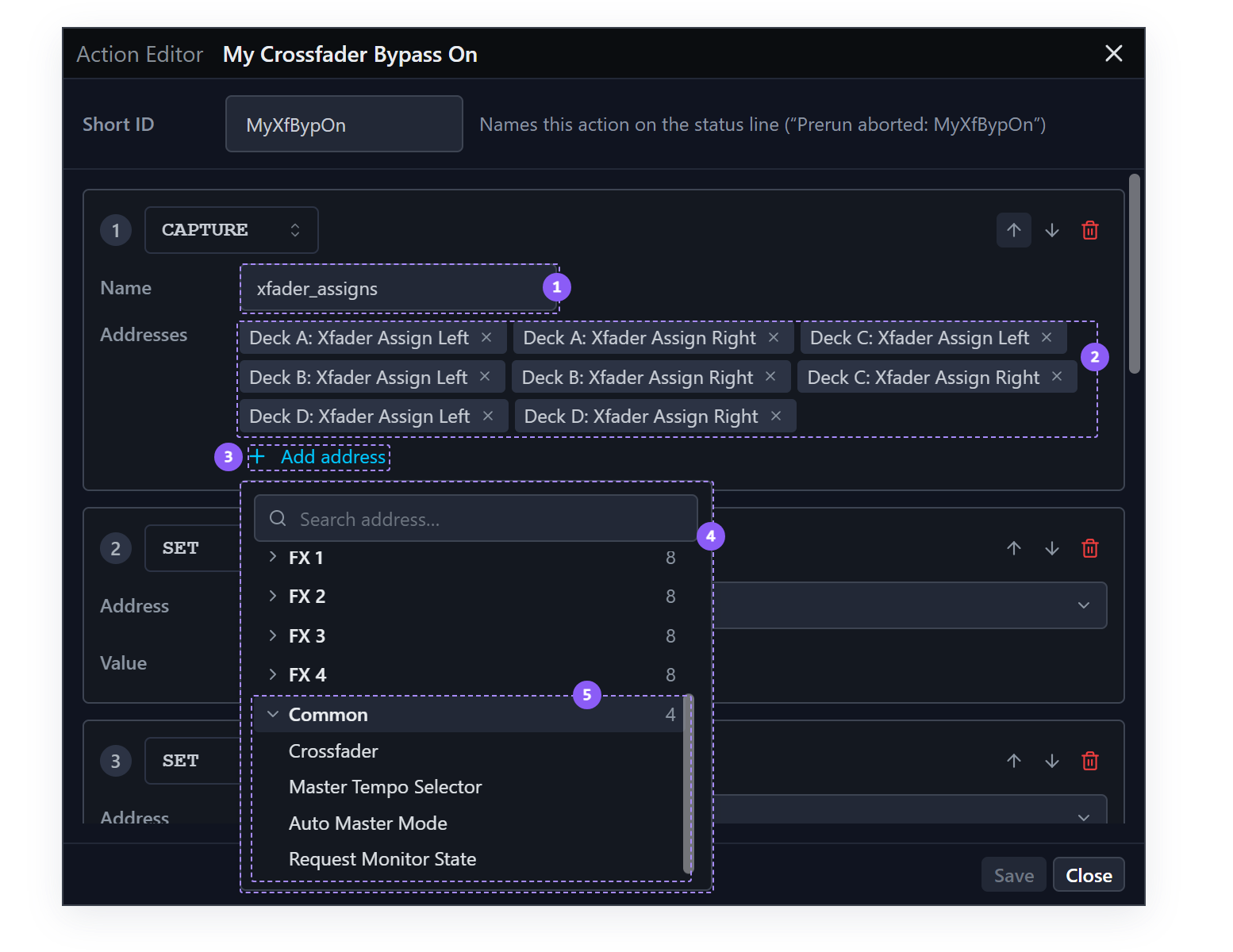
- Name: the label the snapshot is filed under.
- Address chips: one per picked address, naming its deck. The × removes it.
- Add address: opens the picker.
- Address picker: grouped, with a search box. Picked addresses drop out of the list.
- Common: mixer-wide addresses, the crossfader among them.
7. Add decks C and D
Four more SET steps, one per address. For each: Add step, Address → Common → the
assignment, Value → OFF.
| Address | Value |
|---|---|
| Common → Deck C, Xfader Assign Left | OFF (0) |
| Common → Deck C, Xfader Assign Right | OFF (0) |
| Common → Deck D, Xfader Assign Left | OFF (0) |
| Common → Deck D, Xfader Assign Right | OFF (0) |
Nine cards now, and they run top to bottom: the CAPTURE first, then the eight SETs. That order
matters. Capture reads the current values. If a SET ran first, you would snapshot the
state you just imposed, and the post-run action would restore the bypass.
Click Save in the footer. The unsaved marker in the header clears.
8. Put back what was there
Open My Crossfader Bypass Off in the Step Editor and set the Short ID to MyXfBypOff.
Delete all four SET cards with the red trash icon on each. Then Add step → type selector →
RESTORE.
The card has a single Name field. Click it: the suggestions list every CAPTURE name in your
library, including xfader_assigns from My Crossfader Bypass On. Pick it.
If you type the name instead and it matches no CAPTURE step, the line under the field says so.
Click Save.
Snapshots are global
Fusor Studio holds a snapshot under its name for as long as it is running. That is why one action can remember and a completely different one can put it back, with a whole transition in between.
It also means the name is global. Capture xfader_assigns again anywhere and you overwrite what
was there, so name snapshots after what they hold.
9. Try your pair by hand
- Right-click My Pack → Edit Pad Slots.
- Drag My Crossfader Bypass On onto slot 4 and My Crossfader Bypass Off onto slot 5. Each replaces the example in that slot.
- Back arrow, and turn on Pad Mode.
In Traktor, set a layout you will recognize: Deck A on the right, Deck B on the left, Deck C on the left, Deck D unassigned.
Click pad 4. All four decks are unassigned.
Click pad 5. Your layout comes back exactly: A right, B left, C left, D unassigned.
Now unassign every deck by hand, then press pad 4 and pad 5 again. Capture reads off, the sets write off, restore writes off. Starting in bypass, the pair leaves the crossfader in bypass.
10. Where the pair goes next
Either pair is useful on pads: one press before a run, one after.
A fusor can also run a pair itself, as a pre-run action and a post-run action, so the bypass happens without you pressing anything. When a fusor runs your copies, the post-run half puts back only what the pre-run half remembered during the same run; a snapshot from a pad press or an earlier run is not used. That is what Wash Out does with its Mixer FX pair, and what Build a Constant-Power Crossfade sets up. Pre-run and post-run wiring is covered in Pre-run Actions.
Abort skips post-run. If you abort mid-run, the bypass stays on. Fire the post-run half from its pad to put the assignments back, which is the other reason it is worth having on a pad.
What you learned
- That a
SETon a switch takesONorOFF, and that crossfader assignment is a mixer control, which is why it is under Common. - That an action that only writes, like Crossfader Bypass Off, sets the same layout every time.
- That Duplicate gives you an editable copy of an example, and the example stays as it is.
- That
CAPTUREnames a snapshot and takes a list of addresses, through a multi-select picker. - That snapshots are held by name while Fusor Studio runs, so a pre-run and a post-run action can share one.
- That
CAPTUREhas to come before theSETs. - That an abort skips the post-run half, so it is worth keeping the restoring action on a pad.
Where to next
- Change a Curve and Run It Again: the first of the fusor authoring tutorials.
- Crossfader Setup and Deck-Level Modulation: the three setups, and what each does to a running fusor.