Drop In
Drop In holds the incoming channel fader at full for the whole run and modulates the outgoing channel fader from full to zero. You ran that shape by hand on Channel Fader (Start) in Channel Fader.
That shape is a start mix, and this tutorial uses a different start trigger: the transition starts when the incoming deck begins to play.
One run, in Auto Run Mode, because the trigger this page teaches is an Auto one.
Before you start
- Auto Run Mode done, so the Channel Fader domain, Session View and the bars and BPM readout are familiar.
- Your crossfader still in bypass, where Channel Fader put it. It stays there for the rest of these tutorials.
- Tutorials still the active collection.
1. Load Drop In
Click the fusor picker and click the Drop In row. It has a single domain, Channel Fader, and no EQ.
A fusor's mix point says where the listener's attention shifts from the outgoing track to the incoming track. Drop In is filed as start: attention shifts to the incoming track as the transition begins. The mix point is a label and moves no control. Drop In's curves are what bring the incoming deck to full volume on the first tick and hold it there, while the outgoing channel fader is modulated down to zero. Every value is described in Mix Points.
2. Read the card
Open Session View with the expand arrow. One card, Channel Fader, with the author's intent line
above the stack. Expand the card. Each side has two rows, a small number badge followed by the
variant's name: 1 eased and 2 linear. Hover each side's eased row, the variant drawn in
blue: the incoming curve is flat along the top, and the outgoing curve is the only one that travels.
That flat incoming curve is what requires the crossfader out of the path. A crossfader in the signal path starts the run at its outgoing end and reaches the incoming end only at the very end, so it would hold the incoming deck down for most of a run that needs it up from the first beat. You are already in bypass, so you can watch that without hearing it: the crossfader still travels during the run, because it is the progress actuator, and the incoming track sits at full the whole way across it.
3. Prepare your decks
In your DJ application, on the deck pair you chose during setup:
- Load an incoming track with no intro, one whose first beat is the moment you would want it in the mix, and an outgoing track with at least a transition's length left to play. Drop In is a start mix, so the incoming track is at full level from the first tick and the whole transition fades the outgoing track out.
- Set your channel faders. The outgoing deck's at full and the incoming deck's at zero. The incoming curve takes it to full on the first tick.
- Set the crossfader. It is in bypass, so it modulates nothing, but it is still the progress actuator and it still travels. Leave it hard over to the outgoing side, where the chevron pattern in the progress meter points from.
- Start the outgoing deck playing.
- Sync the incoming deck to the outgoing deck, cue it at its mix-in point, and leave it stopped. Starting the incoming deck starts this transition.
- Set the length to a duration that matches how you want to mix the two tracks, and the BPM to the tempo you are mixing at, in the middle of the progress strip, as you did in Auto Run Mode.
The full lifecycle is in Arming and Running.
4. Arm through the toggle
Click the chain-link icon in the toolbar's middle group, between the Run Mode switch and the rising trend line. It turns blue. That is Start-with-Incoming, the other of Auto Run Mode's two start triggers. If the Run Mode switch was on Manual, clicking the toggle moves it to Auto, and switching back to Manual clears the toggle.
Clicking it on also arms the Fusor player. The arm/play control stops being a PLAY button and becomes a dot, yellow because it is armed, and the status line reads:
Armed: starts with incoming deck
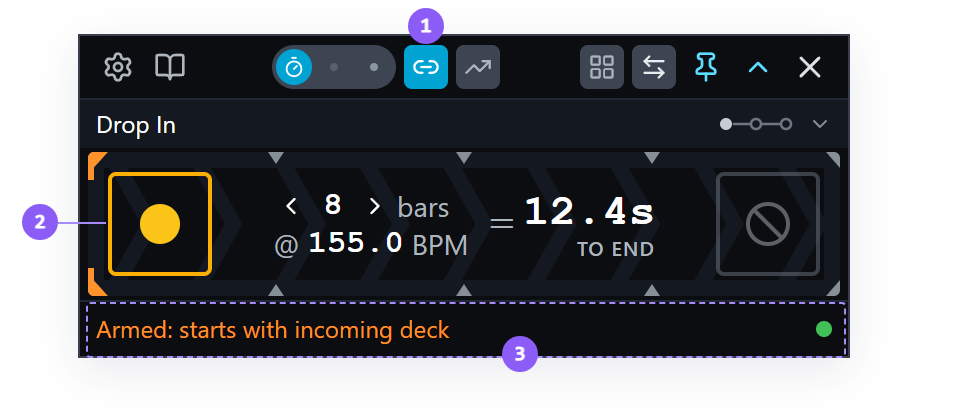
- Start-with-Incoming toggle: lit blue. Clicking it on also arms the Fusor player.
- Arm control: a yellow dot while armed for Start-with-Incoming.
- Status line:
Armed: starts with incoming deck.
The trigger fires on a deck starting, so the toggle is disabled while the incoming deck is already playing, and its tooltip says so. Every condition that disables it is tabulated in Transport Controls → When the toggle is disabled.
5. Run it
Start the incoming deck in your DJ application as the outgoing track reaches its mix-out point. Drop In's mix point is Start, so the incoming track's mix-in point is at the start of the run.
If you are unsure what we mean by starting the incoming deck so the mix-in and mix-out points meet on the mix point, see Starting a Transition for examples.
The transition starts when the deck starts. The incoming track plays from its first beat at full volume, and the outgoing track begins its fade underneath. You started the transition from your DJ application, without touching the Fusor player.
Press END at completion.
The toggle stays on for the next transition and the one after that. It is a session-level preference, cleared by clicking it off, and gone at the next launch.
6. The other way into a start mix
This run assumed a track with no intro. A track with an intro you are skipping provides more flexibility. Start the deck early, beatmatch it by hand, and start the transition yourself when the incoming track's mix-in point arrives: press PLAY in Auto, or move the crossfader in Manual. The moment you want is some way after the deck started, so your own start is the better trigger for it.
Start-with-Incoming suits the Start mix point, where attention shifts to the incoming track the moment its deck starts.
What you learned
- That a start mix means the incoming deck arrives at full and the outgoing deck fades out beneath it, and that the shape is built into the fusor's curves.
- That a fusor's mix point field says where the listener's attention shifts from one track to the other, and that Drop In is filed as start.
- That a start mix requires the crossfader out of the signal path, because a crossfader that reaches its incoming end only at the very end holds down a deck the fusor needs up from the first beat.
- That the chain-link toggle switches the start trigger from your press to the incoming deck beginning to play, and arms the Fusor player in the same click.
- That Start-with-Incoming is disabled while the incoming deck is already playing.
- That the toggle is a session-level preference: it stays on across runs and is gone at the next launch.
- That a track with no intro uses sync and the toggle, and that a track with an intro you are skipping provides more flexibility: a hand beatmatch and your own start, by hand or in Auto.
- That Start-with-Incoming suits a fusor with a Start mix point.
Where to next
- Drift: FX routing, a stepped lane whose positions the card names before the run, and a Middle mix point.
- Start-with-Incoming: how long the preference lasts, how pause and resume differ between the two paths, and the tempo-ramp interaction.
- Crossfader Setup and Deck-Level Modulation: the three setups, and the authoring pattern that lets one fusor work across all of them.