Build a Step Set
You have run a stepped lane and read its ladder: a delay rate that jumps between 1/8, 1/4, 3/8
and 4/4, with a step set behind it naming the positions the lane can take. That set shipped with Fusor Studio.
This tutorial builds one of your own. You duplicate the shipped ladder, rename its positions, save it
to the Step Sets window, attach it to the lane, run the fusor on your ladder, and restart to see what
stayed. Two files are involved and they behave differently: a step set is a file of its own, and the
lane's attachment to it lives inside the .fusor.
Before you start
- Drift done. You have run it and read the positions off its computed line.
- Change a curve and run it again done, so the Domain Editor's property strip is familiar and you have committed one edit through its footer.
- Traktor, with an FX Unit in group mode holding a Filter in slot 1 and a Delay in slot 2, as on Drift. The step set this tutorial starts from names Traktor's Delay rates.
- Your crossfader in bypass.
1. Open the Step Sets window
Open the Library and click Step Sets in its header. The Step Sets window opens. Two panes: the library list on the left, and on the right a metadata form beside a compact step ladder.
2. Make a step set of your own
Select Delay Rate (7) in the list. Its seven labels are the seven positions of the Delay's RATE knob. It ships with Fusor Studio, so it can't be edited or deleted.
Click Duplicate.
The window shows an unsaved copy called Delay Rate (7) copy. The ladder has no grid and no axes, because a step set is only an ordered list of names and there is no timeline to author it against.
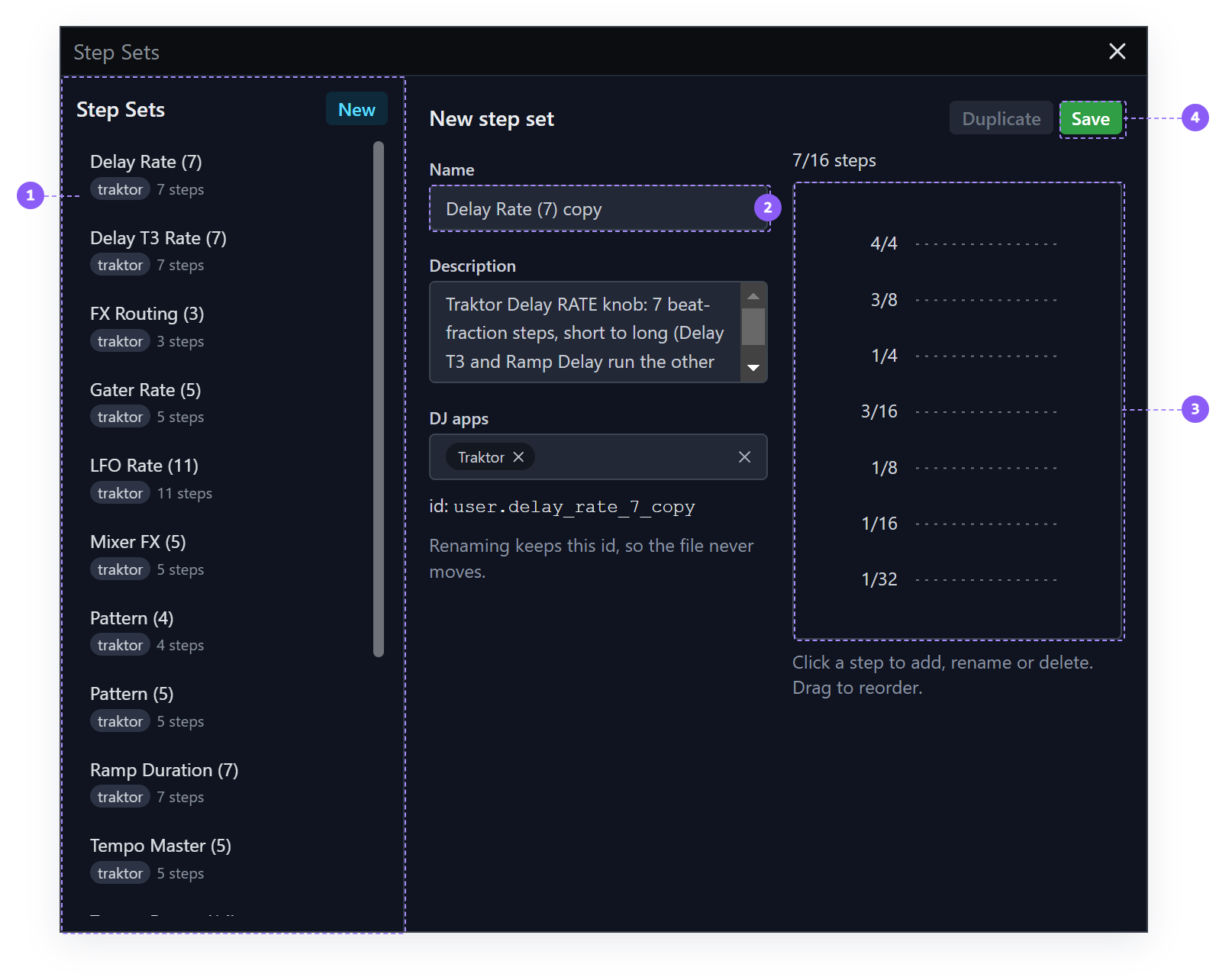
- Library list: every step set, bundled and your own.
- Name: the copy starts as Delay Rate (7) copy.
- Step ladder: the steps in order, with no grid and no axes.
- Save: the copy is not in your library until you save it.
Now change it:
-
Name →
Delay in Note Names. -
Description → Traktor Delay RATE positions, named as note values.
-
DJ apps → traktor.
-
Rename each label: click it, choose Rename…, type the new name and press Enter.
Label Rename to 1/3232nd1/1616th1/88th3/16dotted 8th1/4quarter3/8dotted quarter4/4bar
Below the name field the id updates live: user.delay_in_note_names. That id is fixed the first
time you save and never changes again, so renaming the set later cannot create a second file.
Click Save. The set is written to your library's step_sets/ folder as a single JSON file, with
no restart needed.
Keep the count at seven. A step set spaces its positions evenly across the knob, so the value each position sends depends on how many positions the set holds. Seven names on a seven-position knob send the same values as before. The ladder's menu also offers Add step above, Add step below and Delete step, and the Step Sets window lets you drag a row to reorder it. Any of those changes which value each name sends, and the Delay's knob is no longer set to the position each name says.
The full builder, New, Revert, the delete rules, and what happens to lanes that already used a set you delete, is in Step Sets.
3. Attach it to the lane
Close the Step Sets window and get back to the lane's ladder:
- Library → Fusors → the Drift row's info icon → Domains tab.
- Click the FX Unit card's header to open the Domain Editor.
- Select the Outgoing side tab, then the Slot 2 tab, then the Amount parameter tab.
- On the property strip below the canvas, Step Set reads
7 steps. Click Change….
The Step Sets window opens in its picking view, with Picking for and this lane's name across the top. It reads your library each time it opens, so Delay in Note Names is in the list with a User badge. Click it to preview its steps on the ladder beside the list.
Click Apply to this lane. The window closes.
The gutter relabels, and the anchors stay where they were. Applying a different step set moves each anchor to the level with the same label where the new set has one, and falls back to the nearest level by height where it does not. None of your names match the old ones, so every anchor fell back to the nearest level, and because your set has the same seven positions at the same heights, the nearest level is the one each anchor was already on.
Had your set kept 4/4 under its old name, the anchor on it would have stayed there by name, whatever
height 4/4 sat at in your set. The rule: anchors follow names first, and
height only when the name is gone.
4. Put the attachment on disk
Two files are in play, and only one of them has changed on disk so far.
The step set is already written. You clicked Save in the Step Sets window and it went to step_sets/
there and then. It belongs to your library, not to any fusor, and every fusor you author from here
can reach it.
The attachment is not. Which set a lane uses is a property of the fusor, so it lives in the
.fusor file and it commits the way every other canvas edit does: through the Domain Editor's
footer.
Click Save & Close.
5. Run your ladder
Close the Library window and load Drift. Open Session View and look at the FX Unit card's computed line. It names your positions:
FX1 Slot 2 Amount: 8th …bar
Your names are longer than the fractions they replaced, so the full line,
8th → quarter → dotted quarter → bar, no longer fits on the card. The card shows the first and
last positions with an ellipsis between them.
Start your outgoing deck and run it. The echo steps exactly as it did before, because the lane sends the same values. Only the names changed.
Press END at completion.
6. Restart, and check both halves
Quit Fusor Studio and start it again.
The attachment is still there. Reopen Drift → Domains → the FX Unit card → Outgoing,
Slot 2, Amount. The gutter shows your labels and the property strip's Step Set names
Delay in Note Names. The lane is on your ladder because the .fusor on disk says so.
The step set is still there. Click Change… and it is in the list with its User badge, its description and its labels. Click the book icon, click Step Sets in the Library header, and it is in the library list there too.
Both persist, and they are two separate writes. The step set is a file of its own, saved through
the Step Sets window's Save; the attachment lives inside the .fusor and went to disk with the Domain
Editor's Save & Close. Skip either and you come back to half the work: a ladder in the Step Sets window
with no lane using it, or a lane pointing at a set you never saved.
What you learned
- That Duplicate on a bundled set makes an editable copy in the Step Sets window, and that a saved set's id is fixed at first save.
- That a step set is written to
step_sets/as its own file the moment you click Save, and belongs to your library rather than to a fusor. - That renaming positions changes only their names, and that adding, deleting or reordering them changes the values they send.
- That applying a different set moves each anchor to the level with the same label, falling back to the nearest level.
- That the lane's attachment lives in the
.fusor, reaches disk through the Domain Editor's footer, and is there again after a restart.
Where to next
- Author your first fusor: the first tutorial that builds a fusor from an empty draft.
- Stepped Output: the picker, editing steps on the canvas, and the rules for where anchors move when the set changes.
- Step Sets: the builder, its four buttons, and step set identity.
- Curve Editor → Interpolation: Hold with and without a step set.